
License plates can be configured in the Operator Client either by single creation or by mass csv-file import.
You can use one of the pre-configured LPR lists: Allow list, Watch list and Unknown list or any of the new configured lists in the Configuration Client.
Step-by-step guide
How to manually configure license plate and vehicle data to LPR lists in the Operator Client?
-
Open Operator Client, go to Tools, and select Manage License plates.
-
In the Manage license plates pop up page, enter the required information in each column.
-
After completing all details, click Add to save the entry.
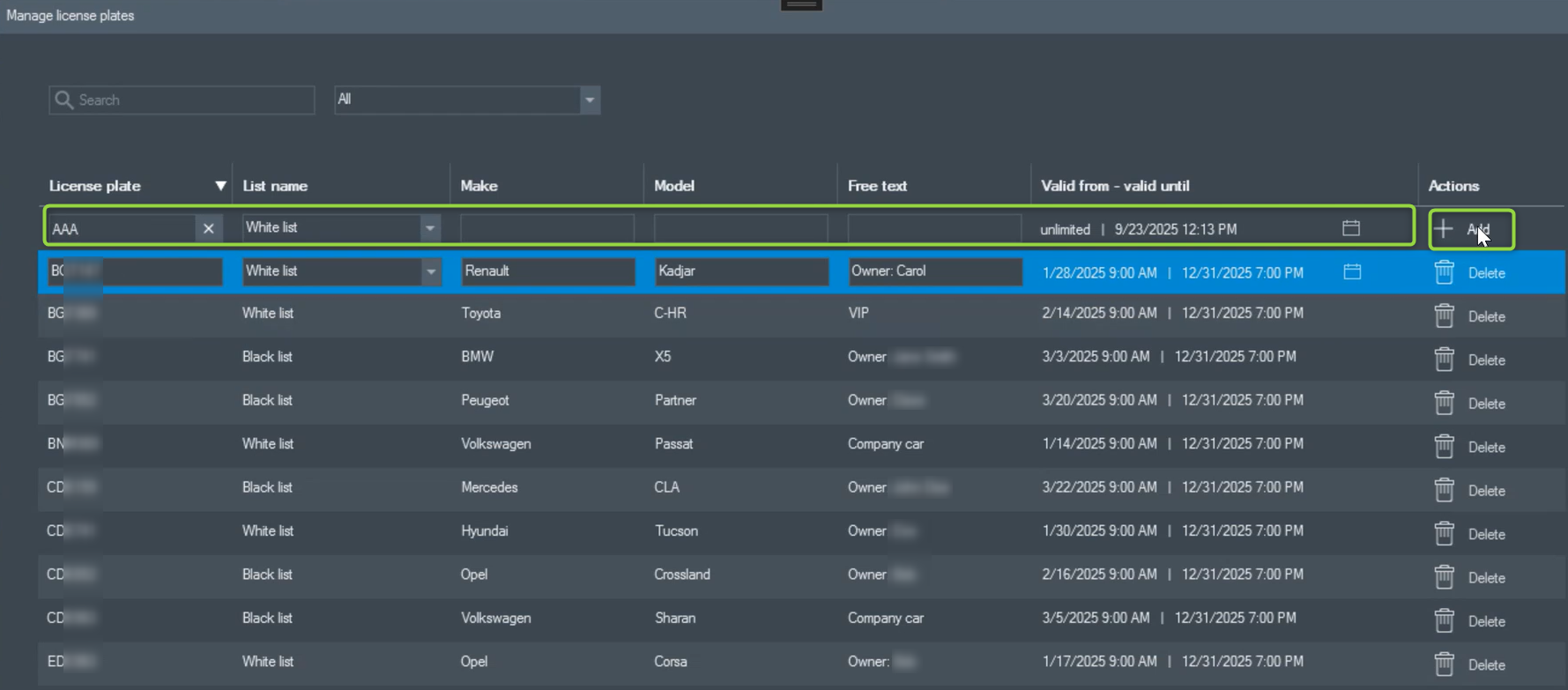
-
A confirmation message will appear indicating that the license plate (for example, AAA) was successfully added.

Note that the Valid from – Valid until field provides multiple options, such as specific dates and times, or entries without a fixed start or end date.
How to bulk import license plate and vehicle data by csv-file in the Operator Client?
-
Open Operator Client, go to Tools, and select Manage License plates.
-
In the upper-right corner, click Import entries from .CSV file
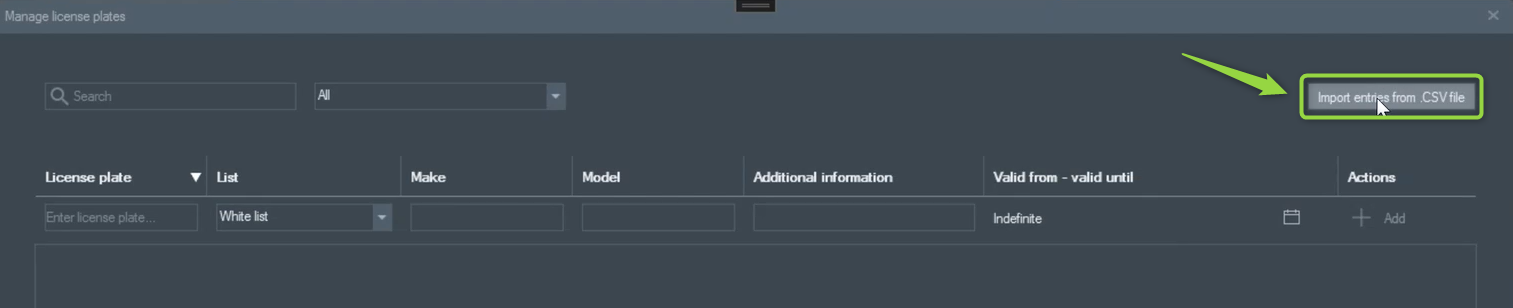
-
Select the desired CSV file and click Import.
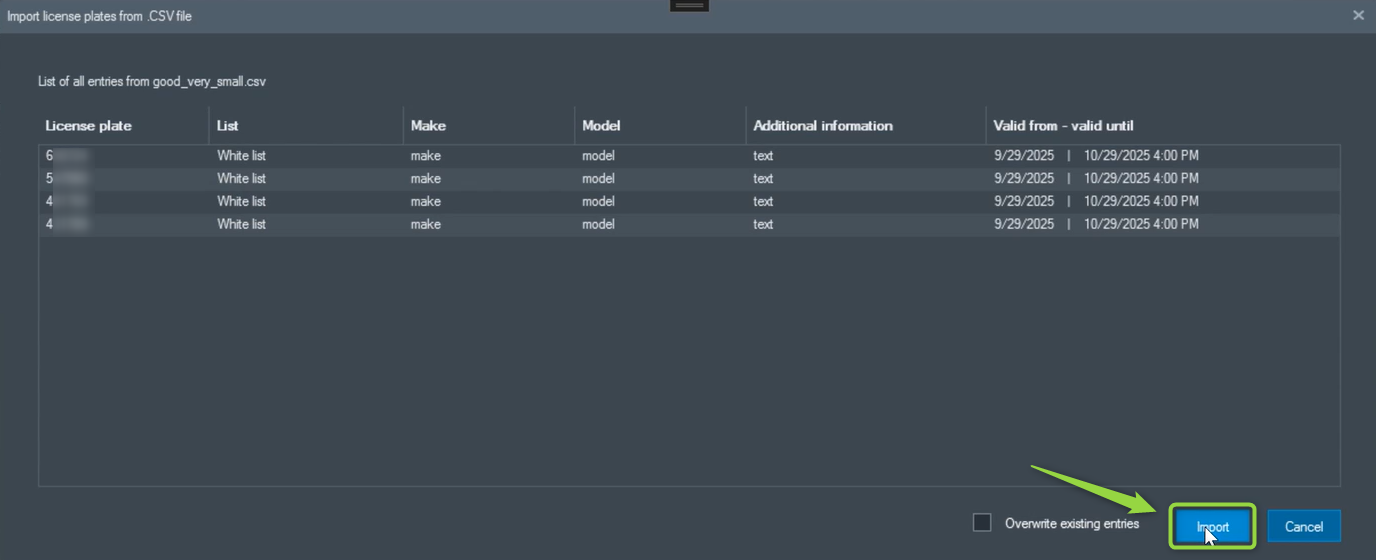
To import another file and replace existing entries, select the CSV file, enable Overwrite existing entries, and then click Import.
If the CSV file contains invalid values, a warning message will appear:
“Some entries could not be imported due to invalid values. Review the highlighted values listed below and try again.”
Correct the errors in the CSV file and import it again.
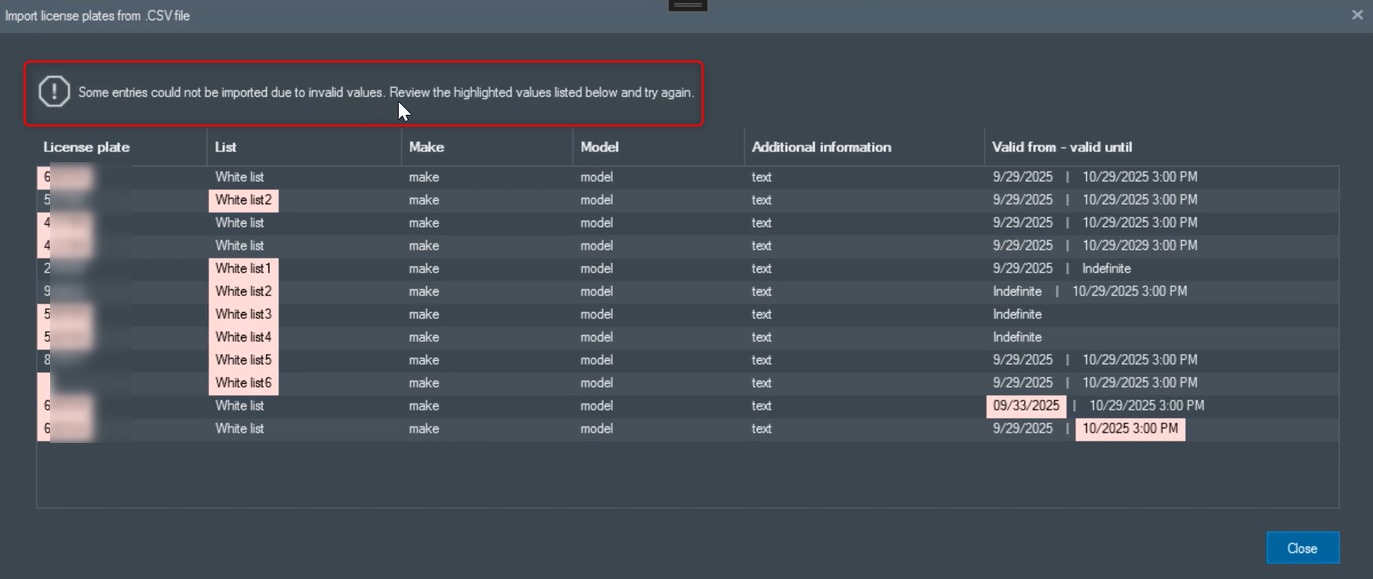
Examples of invalid values include:
-
License plate: The license plate appears more than once in the list or is empty.
-
List: The specified license plate list (e.g., “xxx”) does not exist.
-
Valid from – Valid until: The date/time value cannot be parsed.
