Question
How can I change the stream settings on IP cameras?
Answer
To configure the video stream settings depending on your camera model, start with accessing the camera via web browser.
For CPP13 & CPP14 cameras:
-
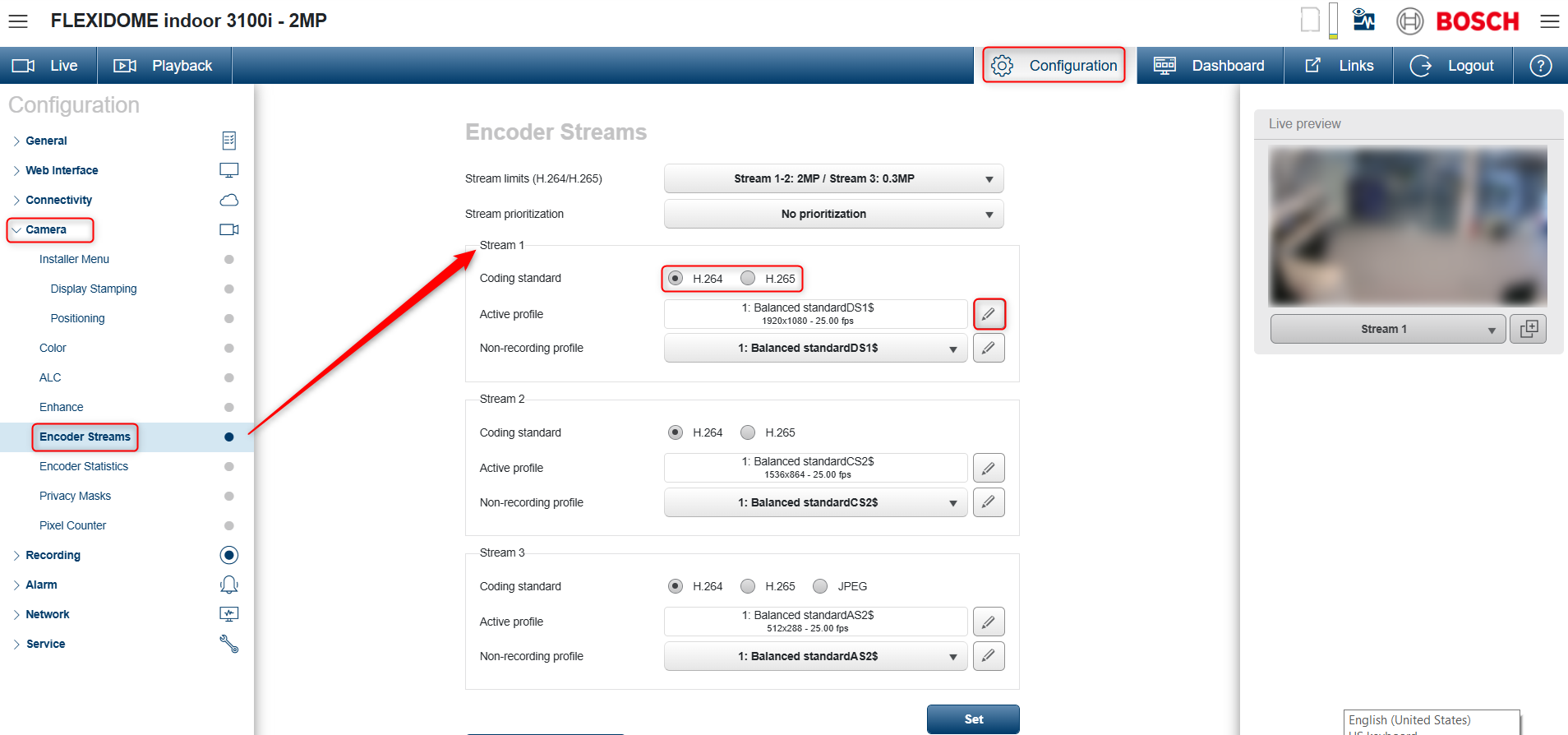
Go to the Configuration tab -> Camera -> Encoder Stream. This section allows configuration of all available video streams.
-
For each stream you can choose the preferred codec (H.264 / H.265 / JPEG)
-
To edit the Stream Profiles, click the Pen icon next to the Active profile.
-
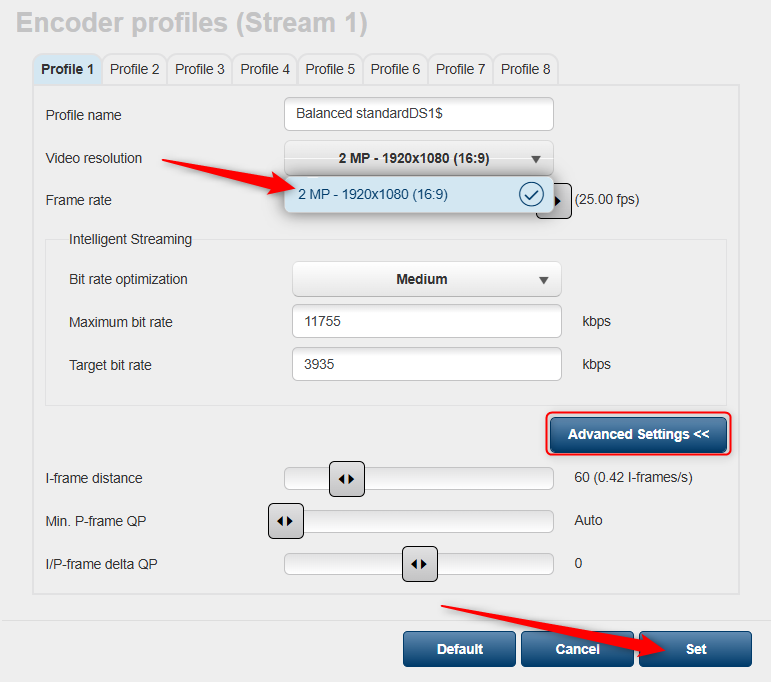
Continue with configuring the available stream parameters as desired
Note: For CPP14 cameras, Stream 1 resolution cannot be changed (it is set to maximum by default).
-
To edit the Frame distance, click Advance Settings. Click Set to apply the changes.
-
After configuring all streams, click again Set to apply the changes.
For CPP 7.3, CPP6 & CPP4 cameras:
-
Go to the Configuration tab -> Camera -> Encoder Stream.
-
In this section, select the desired resolution for the available video streams.

-
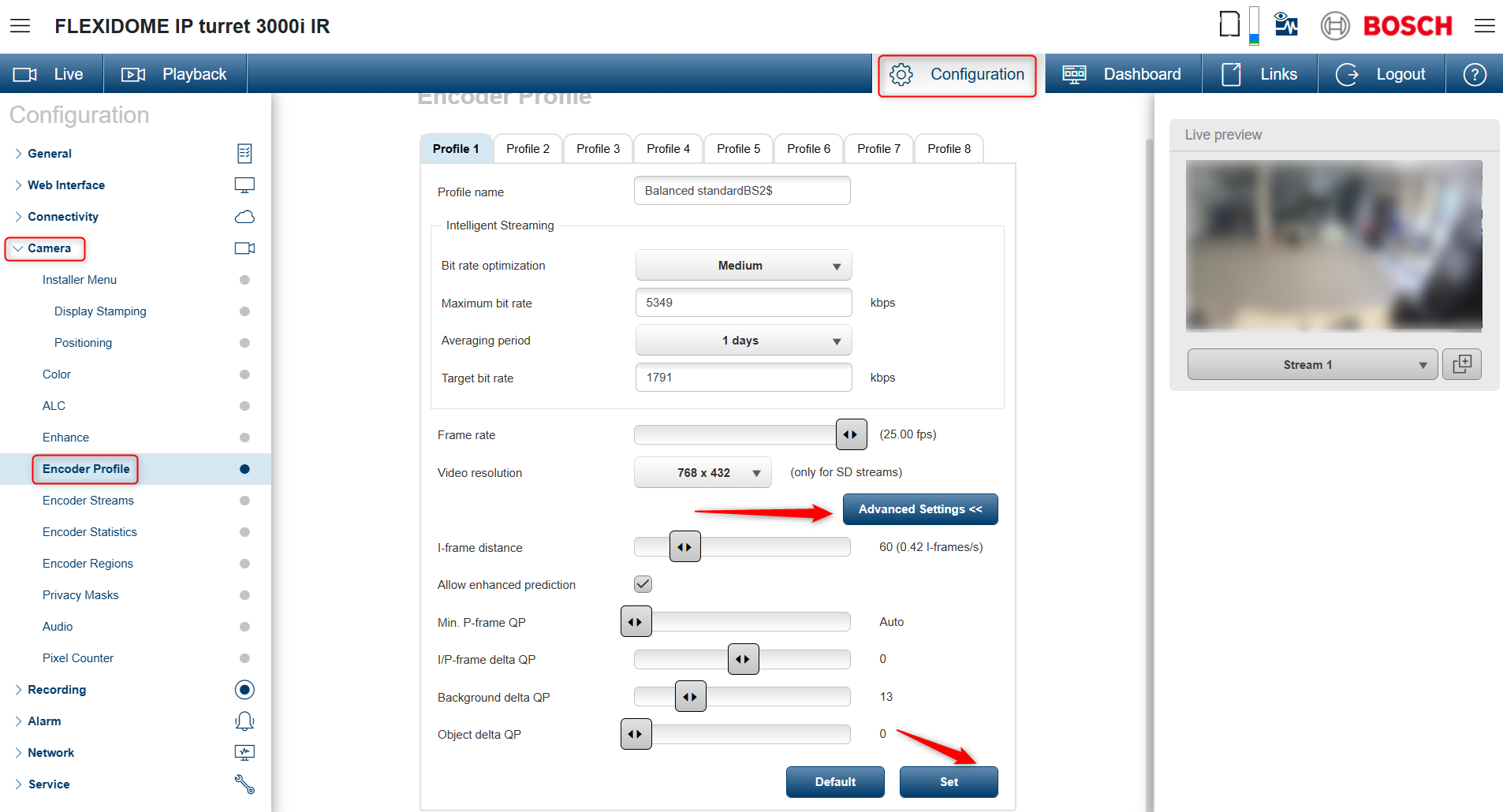
To edit the stream profiles, navigate to Configuration tab -> Camera -> Encoder Profile.
-
Continue with configuring the available parameters as desired
-
To modify the Frame parameters, click Advance Settings.
-
Click Set to apply the changes.