Question
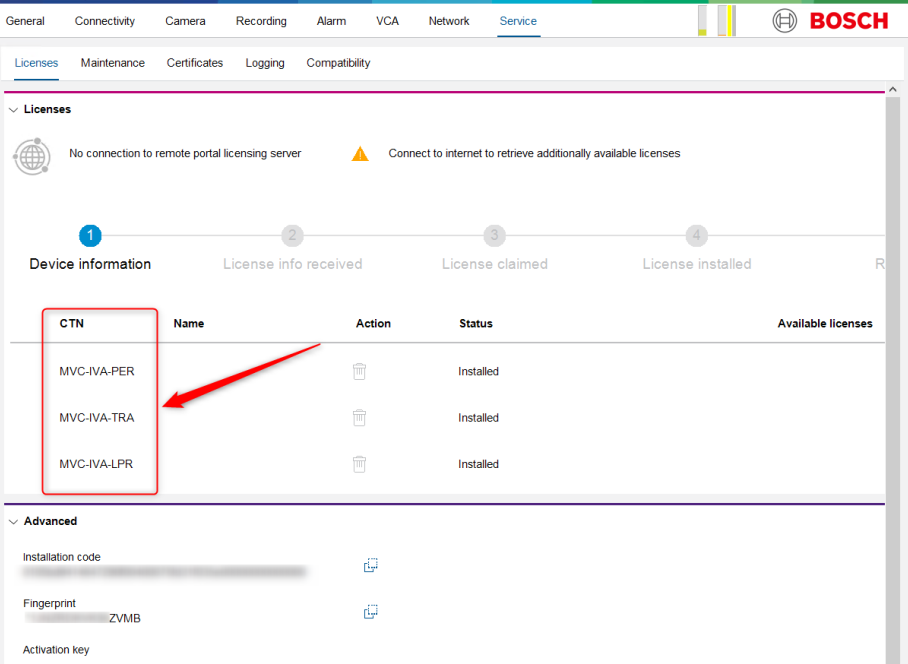
How can I remove an IVA Pro license from camera given that the ‘Uninstall’ button is grayed out in Configuration Manager?
Answer
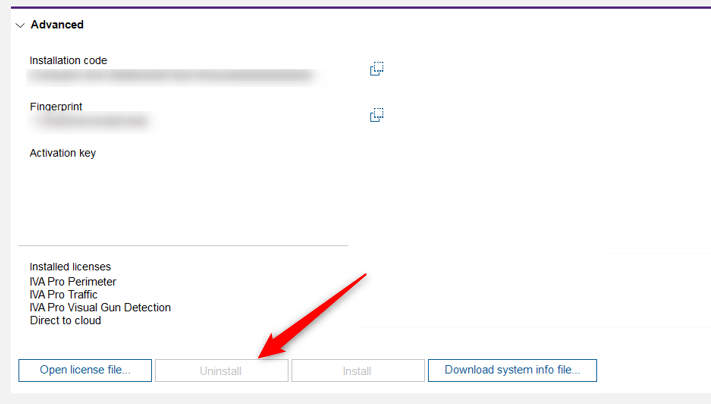
To see the Uninstall button, you need to use the license activation file, specifically the activation key of the installed license you want to remove/ uninstall.
After entering the corresponding activation key, the Uninstall button will become available.
Resolution steps:
-
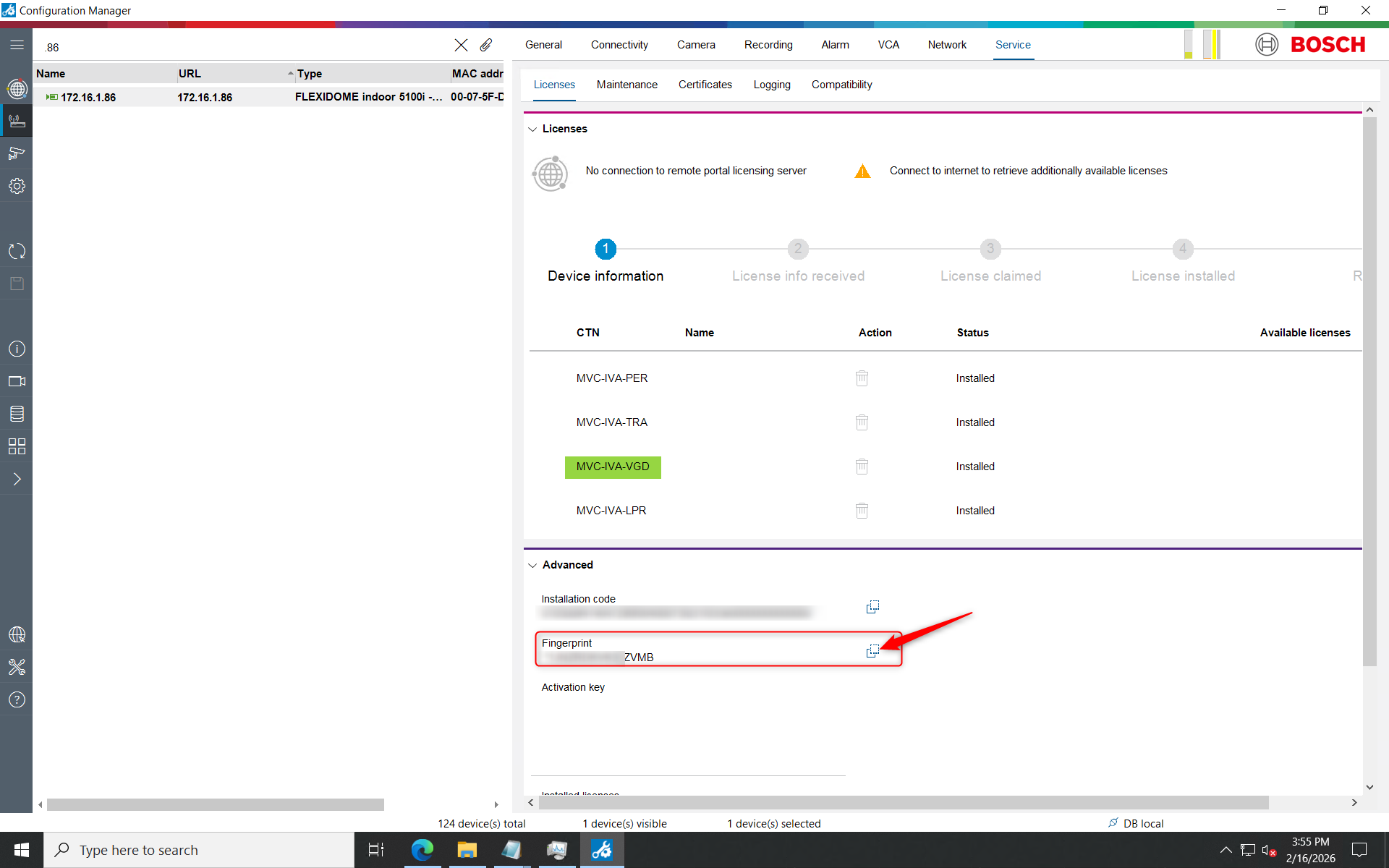
Go in Configuration Manager and select the camera you wanted to Uninstall the license for. In this example, the MVC-IVA-VGD license.
-
Copy the Fingerprint of the camera
-
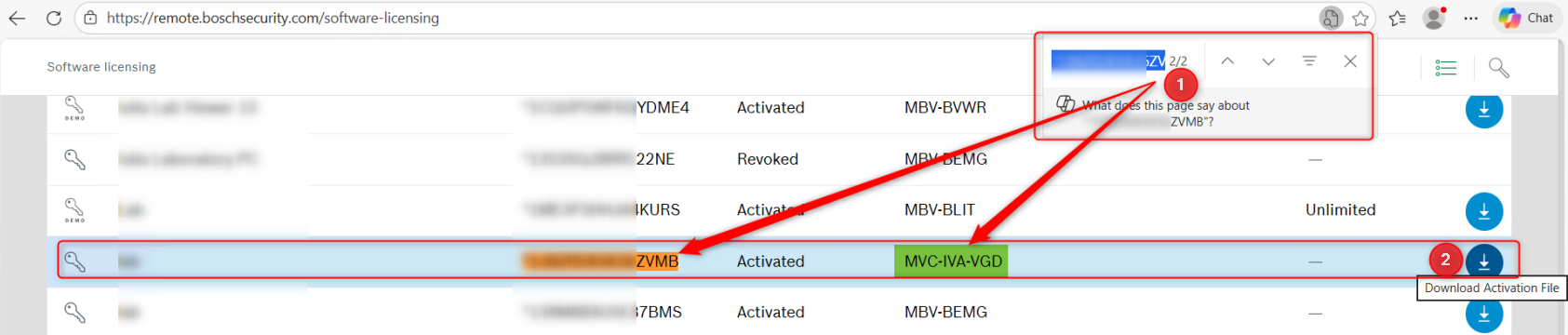
Login into Remote Portal account and go to Software Licensing tab and search for the Fingerprint.
Be sure that the “Activated” Filter is on
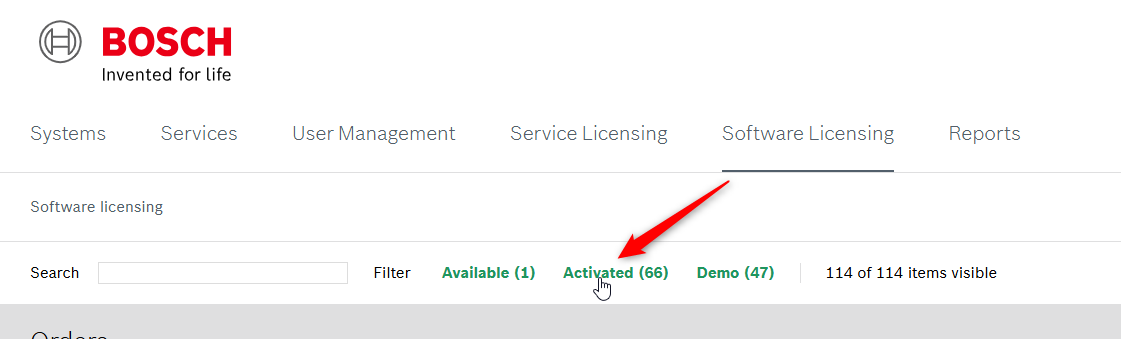
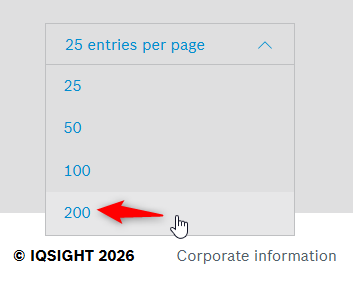
and you have 200 entries per page active under the Activated licenses section from the page
-
Click the download button next to the Activated MVC-IVA-VGD license corresponding to the camera’s fingerprint.
-
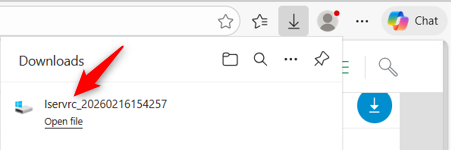
The lservrc file will be downloaded:
-
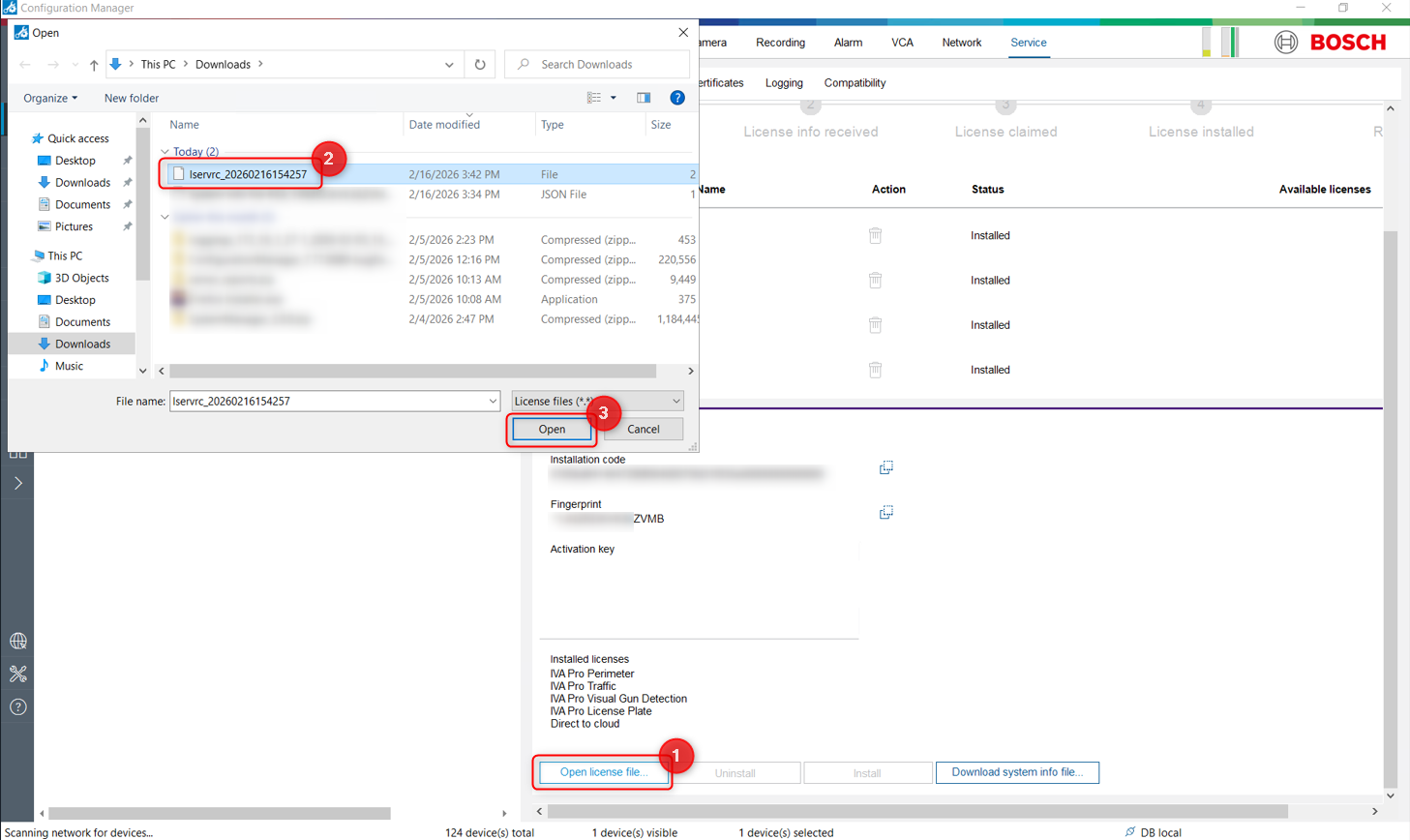
Go back in Configuration Manager and click Open license file.. > Select the new lservrc file that you just downloaded and click Open
-
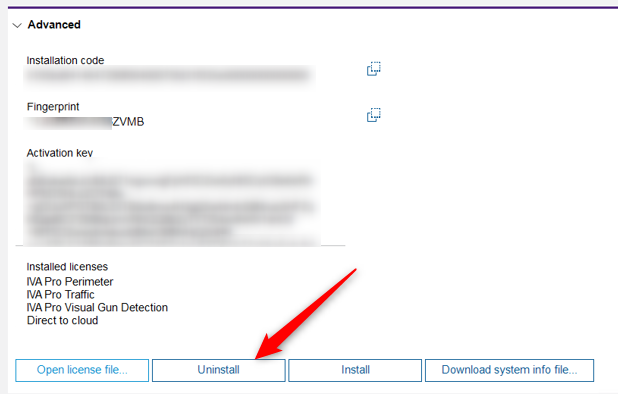
The Uninstall button will become active. Click Uninstall
-
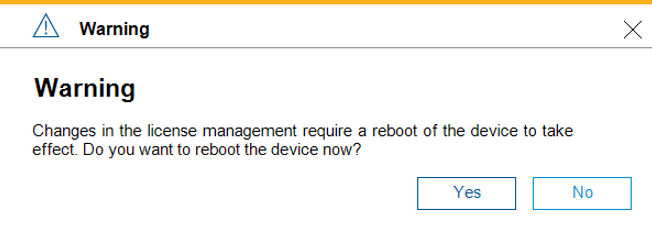
Click Yes and wait for the camera to reboot
-
Once the camera is back, login on it and go in Service > Licenses
You’ll see that the MVC-IVA-VGD License was removed and it is not visible anymore on your camera.