
Question
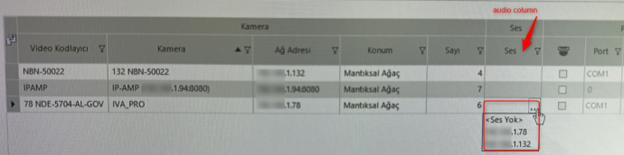
How can you set the Configuration Client so that the IP address of the IP amplifier appears in the camera’s Audio column?
Answer
If the IP address of the IP Amplifier is missing from the Audio Column for a camera in the Cameras & Recording tab of the BVMS Configuration Client, the issue is usually caused by an incorrect audio input configuration.
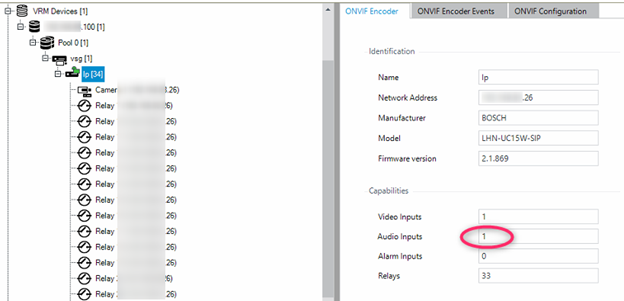
To verify if the audio input is right configured, open ONVIF Encoder and check the Audio Inputs value. It should display 1, as shown in the screenshot.
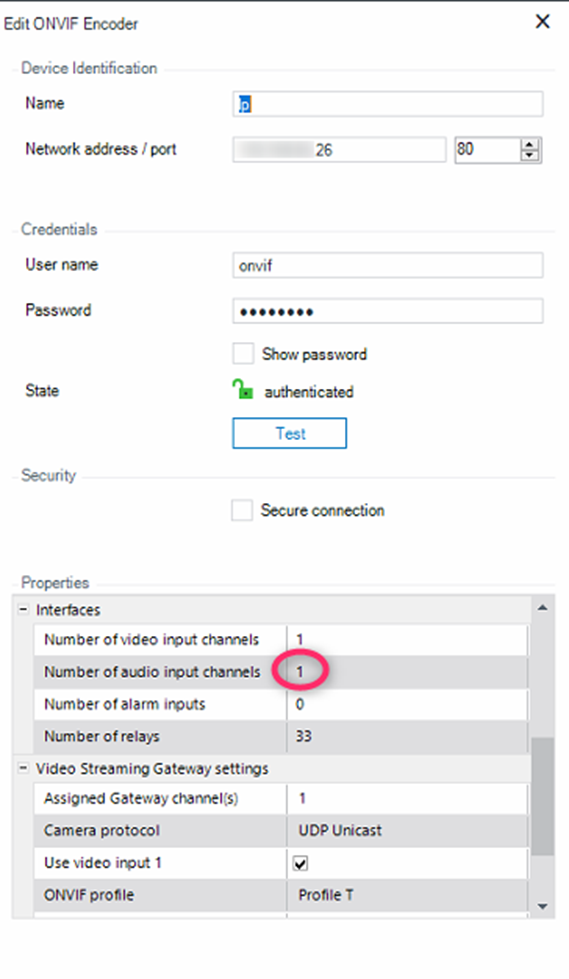
If Audio Inputs does not show “1”, edit the ONVIF device as follows:
-
Right Click on the device and select Edit ONVIF Encoder
-
Go to Number of audio input channels
-
Set the value to 1, then click OK
-
Return to the ONVIF Encoder and check that the Audio Inputs value now shows 1.
Once the audio input is correctly set, the IP Amplifier’s IP address will appear in the camera’s Audio dropdown list.