IQSIGHT, together with Genetec, provides end-to-end secure communication between Security Center and supported IQSIGHT cameras.
This ensures that both camera management traffic (command and control) and video transmission are protected using encrypted communication channels.
-
Command and control communication (camera configuration and operation) is secured using HTTPS (TLS).
-
Video streaming is secured using RTSPS (SRTP over TLS) or other encrypted transport mechanisms supported by the camera and Security Center.
Together with Genetec we provide a full end to end security, this means the command and control for configuring and operating the camera is transmitted in a secure HTTPs tunnel and the video stream is send also via a secure channel e.g. SRTP, HTTPs tunnel…
Best Practice: Always use the latest certified camera firmware together with the latest compatible Genetec Device Pack to ensure access to the latest security enhancements, bug fixes, and interoperability improvements.
Step-by-step guide
1. Prepare the Camera
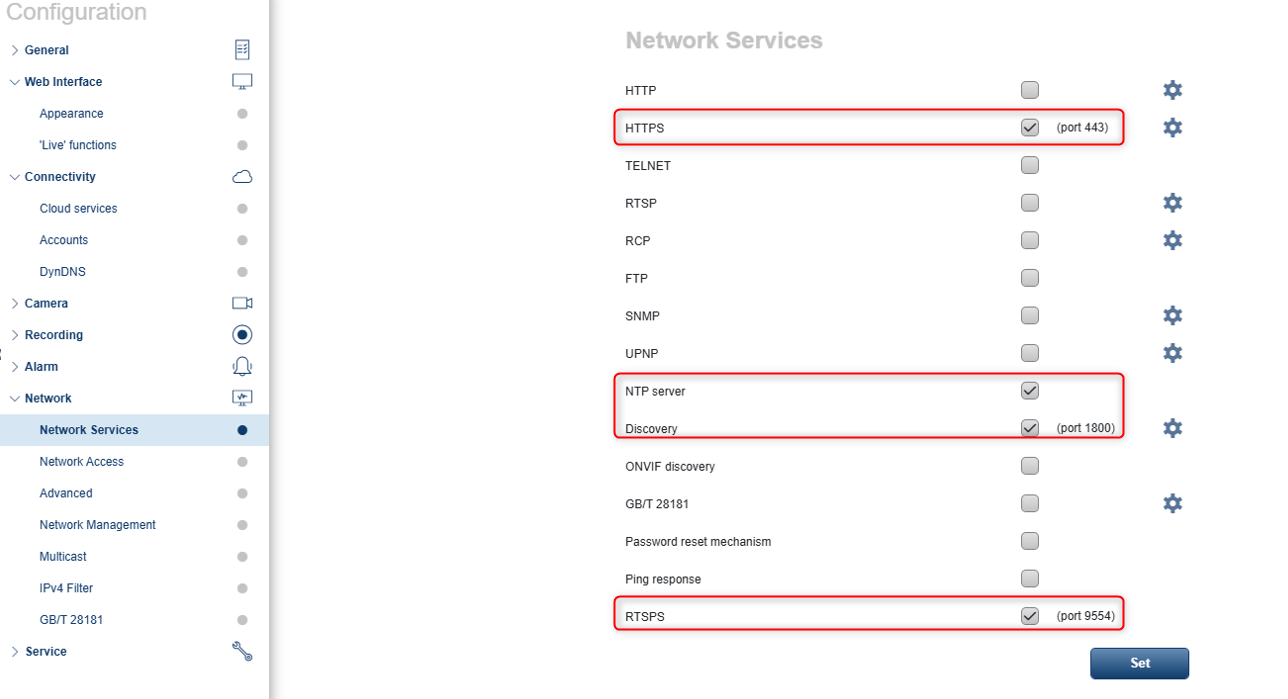
Factory-default IQSIGHT cameras are shipped with Secure by Default enabled. In this mode, all non-secure network services are disabled, allowing only encrypted communication.
You can verify or enable the required secure network services either through the camera web interface or IQSIGHT Configuration Manager.
Via the camera web interface
Navigate to Configuration → Network → Network Services and enable the following services:
Synchronize Camera Date and Time
Before adding the camera to Genetec Security Center, ensure that the camera date and time are configured correctly. Accurate time synchronization is required for secure TLS communication and certificate validation.
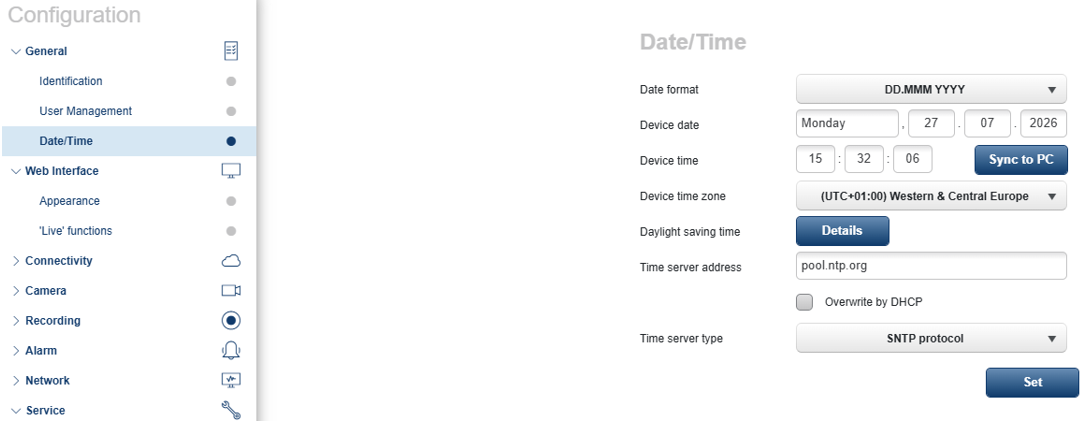
Navigate to Configuration → General → Date/Time and configure the following settings:
-
Date format: DD.MM.YYYY
-
Time zone: Select the appropriate time zone (for example, (UTC+01:00) Western & Central Europe)
-
Time server address: pool.ntp.org
Alternatively, if the camera is connected to your local network and you want to synchronize it with your workstation, click Sync to PC.
Important: Incorrect date and time settings may prevent secure HTTPS/RTSPS communication due to certificate validation errors.
-
Date format: DD.MM YYYY.
-
Time zone: Example - (UTC+01:00) Western & Central Europe
-
Time server address: http://pool.ntp.org . Alternatively, to align the camera time with the computer time, click Sync to PC
2. Prepare Security Center
Configure Certificate Exception Settings
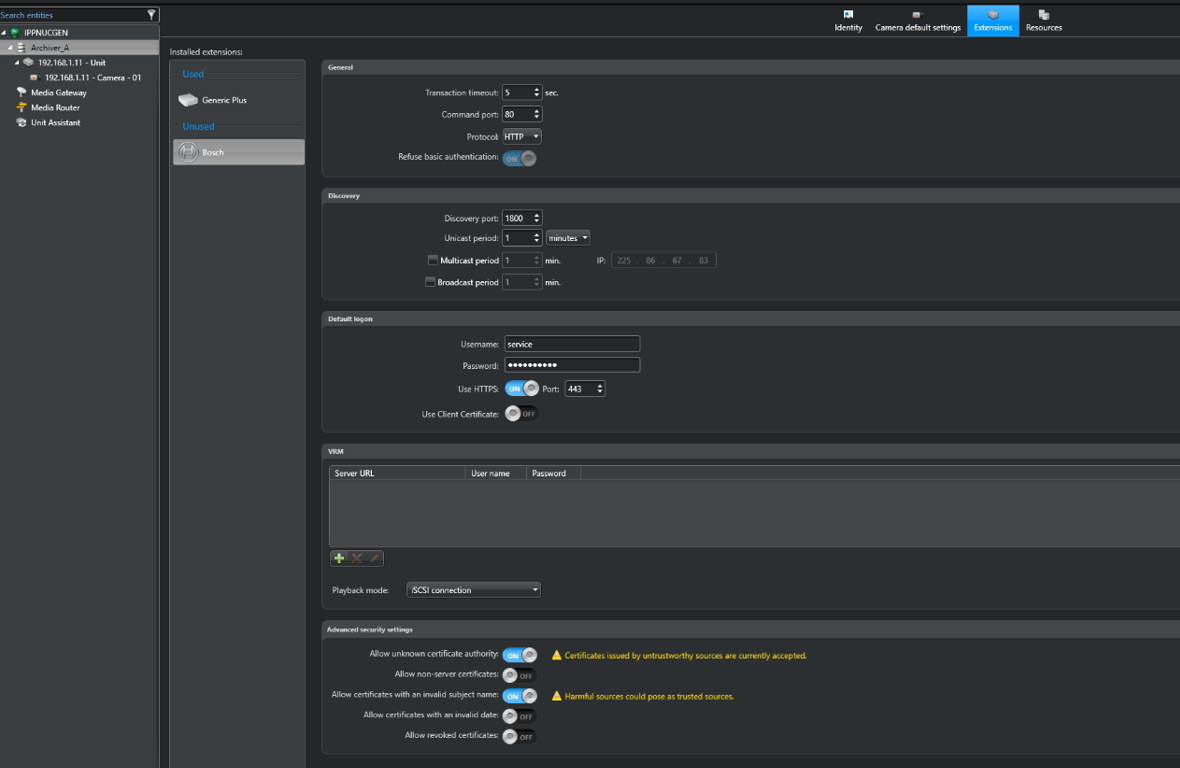
To enable secure communication with legacy IQSIGHT cameras (CPP 7.3 and earlier), configure the Bosch legacy driver to use HTTPS.
In Genetec Config Tool, navigate to Extensions → Bosch (Legacy Driver) and configure the following settings:
-
Enable HTTPS
-
Set the HTTPS port to 443
-
Configure the Certificate Exception options as shown in the screenshot below.
These settings allow Security Center to establish a secure TLS connection with the camera while handling certificate validation according to your deployment requirements.
Note: For production environments, it is recommended to use trusted certificates whenever possible. Certificate exceptions should only be used when self-signed certificates are deployed or during migration scenarios.
Configure the Genetec Archiver Encryption Mode
To ensure that recorded video is encrypted throughout its lifecycle, configure the Archiver Encryption Mode for the camera.
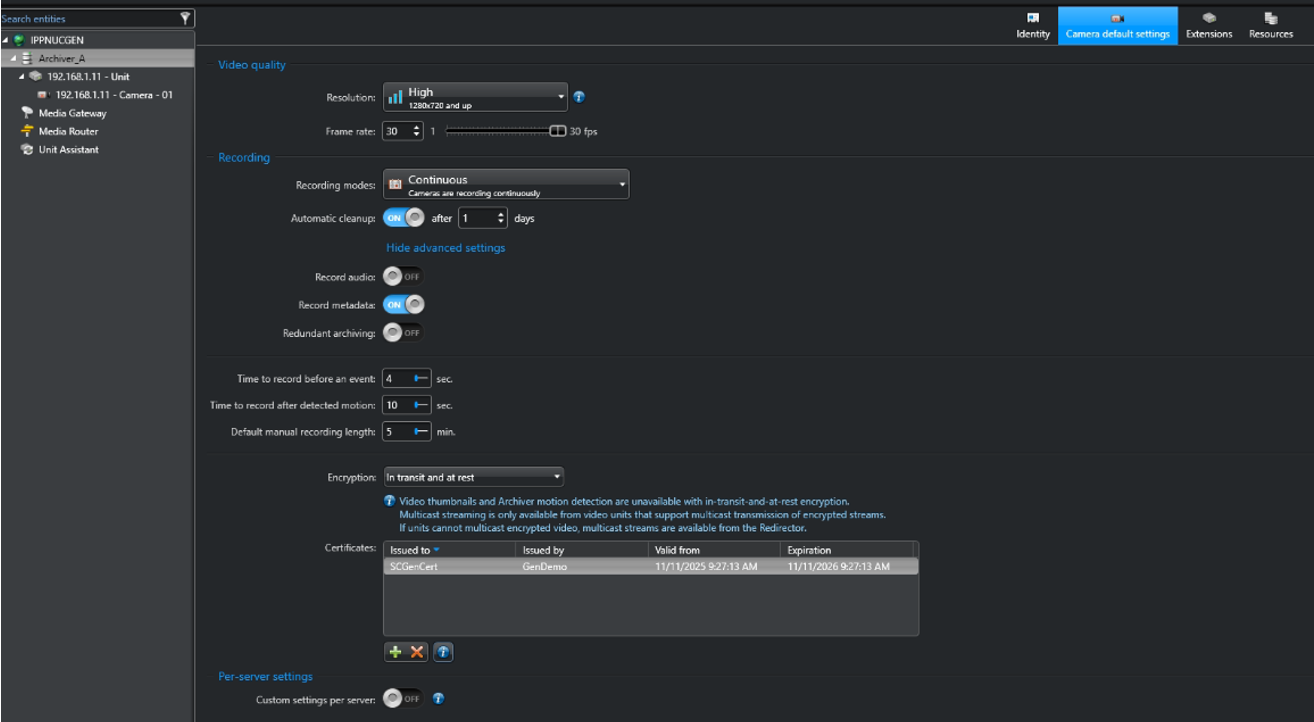
Open the camera's Recording settings in Genetec Config Tool and configure the following settings:
-
Recording mode: Continuous Recording (or as required for your deployment)
-
Encryption: In Transit and At Rest
-
Certificate: Select the available certificate from the Certificates list.
Before enabling encrypted recording, ensure that a valid certificate is selected. Once the certificate has been assigned, apply the configuration.
Important: Encryption In Transit and At Rest protects the video stream during transmission to the Archiver and ensures that recorded video remains encrypted while stored on disk.
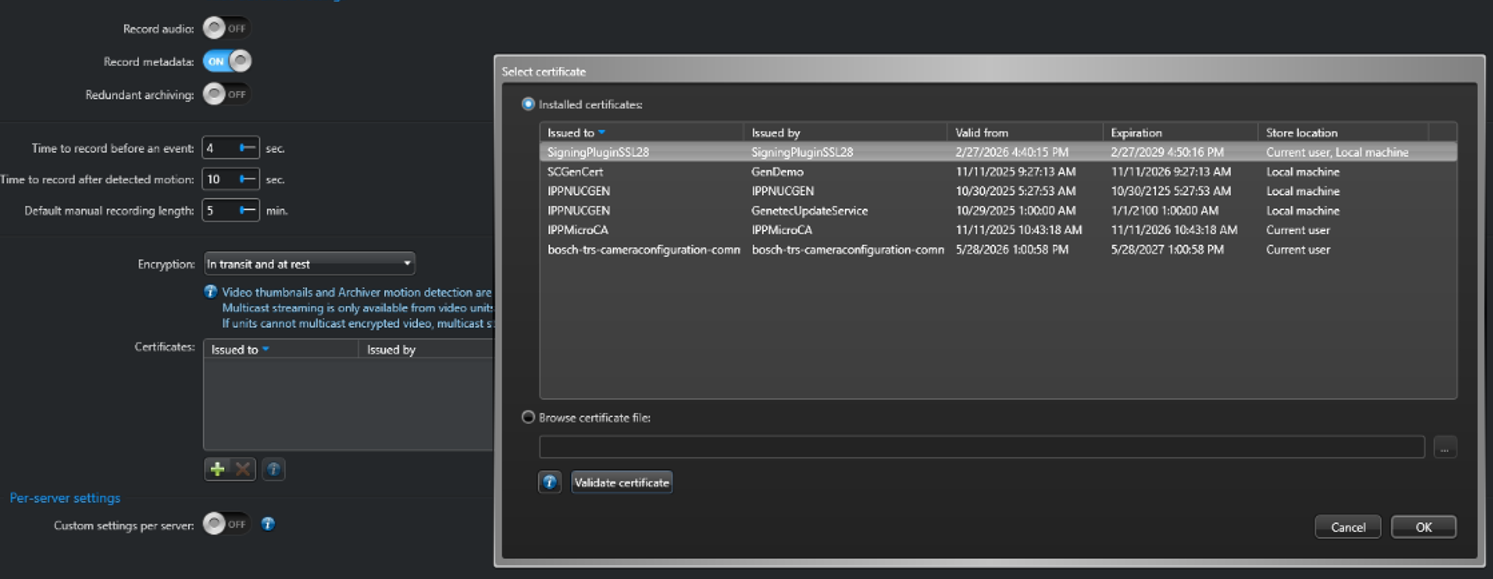
Select the certificate to be used for video encryption and decryption from the list of installed certificates.
3. Enroll the Camera
Add the Camera Manually
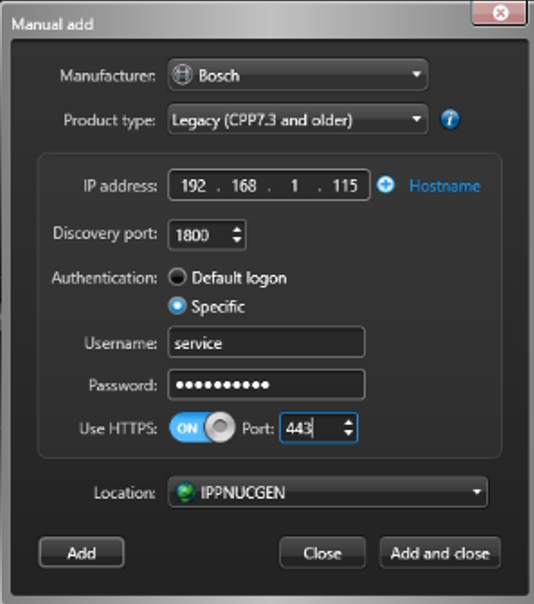
To add a legacy IQSIGHT camera (CPP 7.3 and earlier) to Genetec Security Center, use the Manual Add wizard.
Follow these steps:
-
Open the Manual Add dialog in Config Tool.
-
Set Manufacturer to Bosch.
-
Set Product Type to Legacy (CPP 7.3 and earlier).
-
Enter the camera's IP address (for example, 192.168.1.115).
-
Set the Discovery Port to 1800.
-
Under Authentication, select Specific.
-
Enter the camera username (for example, service) and the corresponding password.
-
Enable Use HTTPS and set the HTTPS Port to 443.
-
Click Add or Add and Close to enroll the camera.
Note: Ensure that HTTPS and the Discovery service have been enabled on the camera before attempting to add it. If the connection cannot be established, verify the camera's IP address, credentials, and network service configuration.
4. Choose the Stream Connection Type
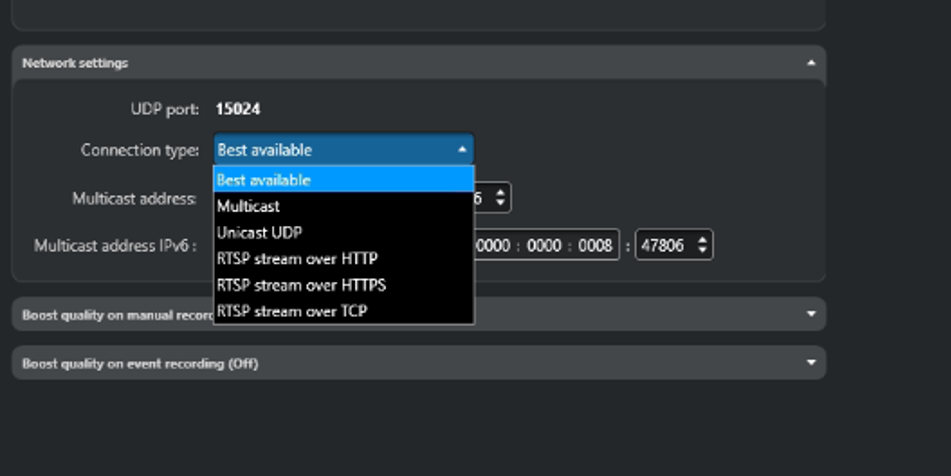
Configure the preferred stream transport method in the camera's Network Settings within Genetec Security Center.
The following connection types are available:
|
Connection Type |
Description |
|
Best Available |
Automatically selects the most secure and efficient transport method. If multicast is configured in Security Center, SRTP Multicast is preferred. |
|
Multicast |
Streams video using SRTP Multicast. Requires multicast to be configured and supported by the network. |
|
Unicast UDP |
Streams video using SRTP Unicast over UDP. Recommended for low-latency streaming in controlled network environments. |
|
RTSP Stream over HTTPS |
Streams video through an RTSP over HTTPS tunnel, providing encrypted transport over TLS. |
|
RTSP Stream over TCP |
Streams video using RTSP over TCP with an encrypted HTTPS tunnel. Recommended when UDP traffic is restricted by firewalls or network policies. |
5. Verify Secure Communication
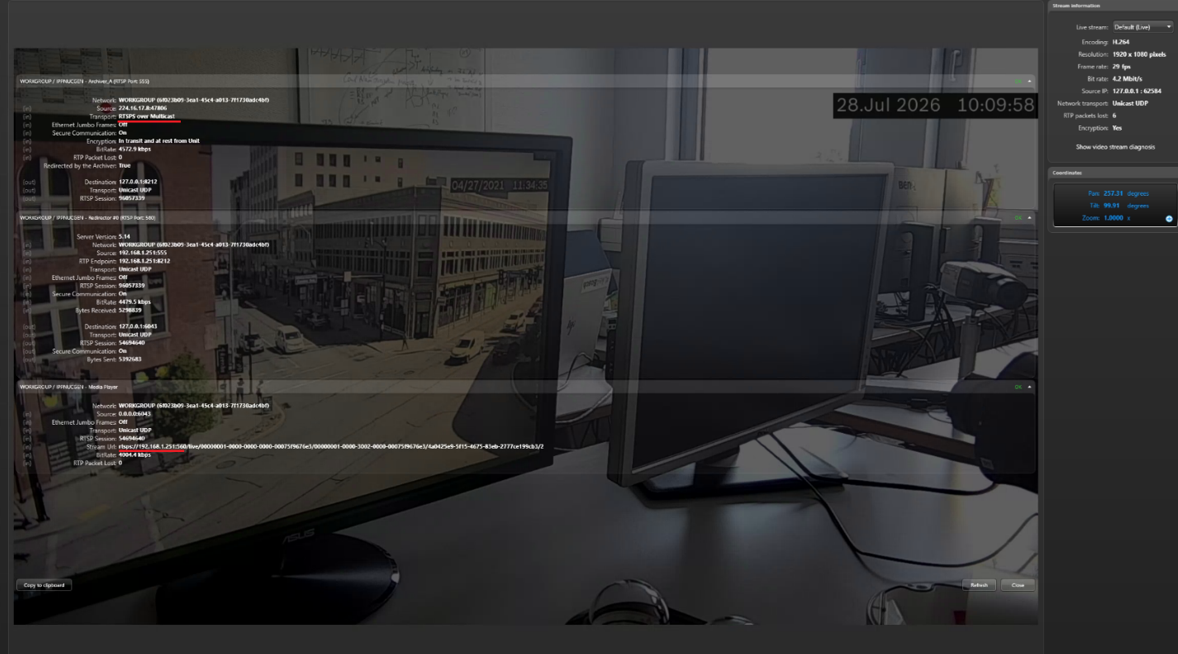
After the camera has been added successfully, verify that the video stream is using a secure transport protocol.
-
Open Show Video Stream Diagnostics for the camera.
-
Verify the following:
-
The Transport field indicates a secure connection, such as RTSPS over Multicast, RTSPS over Unicast, or RTSP over HTTPS.
-
The Stream URI begins with rtsps://.
-