
Question
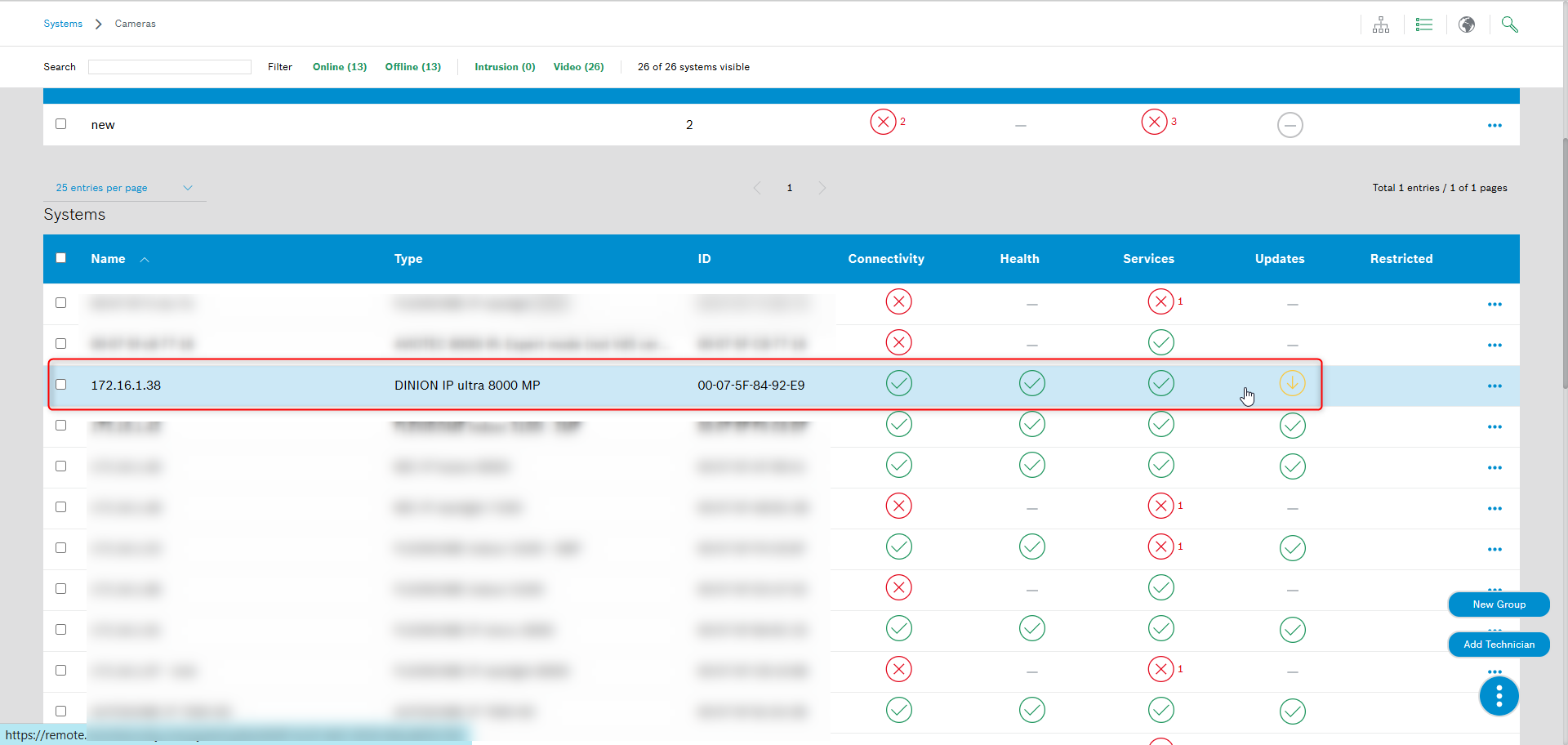
What does the yellow arrow icon in the Updates column indicate for the camera in the Systems menu of Remote Portal?

Answer
The yellow arrow icon in the Updates column indicates that a Firmware update is available for the camera. It shows that the device is running an older Firmware version and that a newer version can be installed through Remote Portal.
To perform the Firmware upgrade for your camera directly from Remote Portal:
Option 1:
1. Select your camera where Updates are present:
-
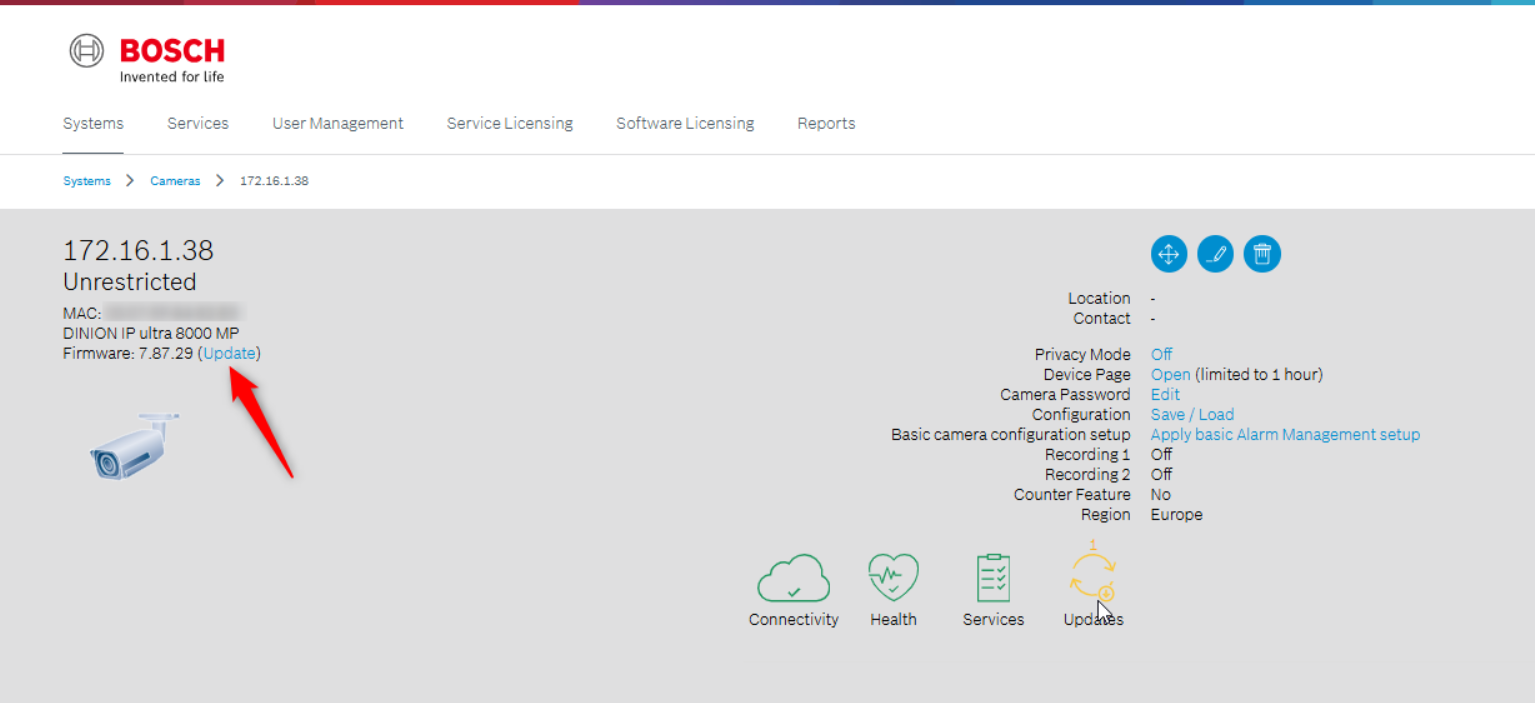
And click the Update button next to the camera’s details:
-
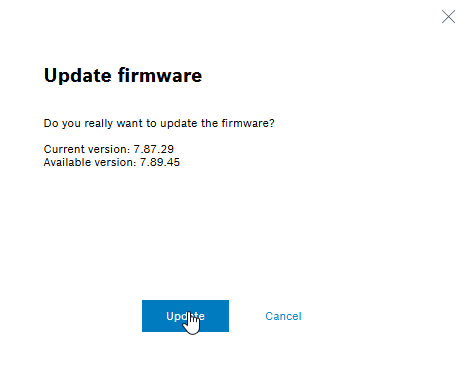
Confirm your action by clicking Update:
-
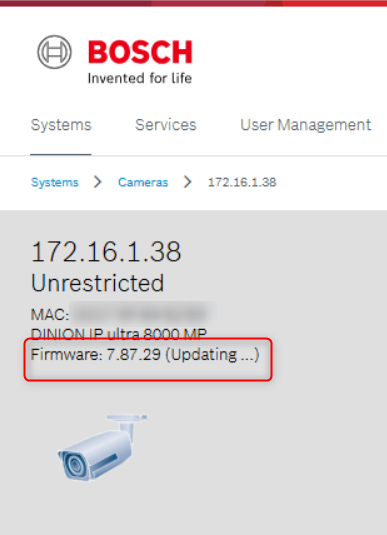
And wait for the Firmware upgrade process to be completed:
Option 2:
-
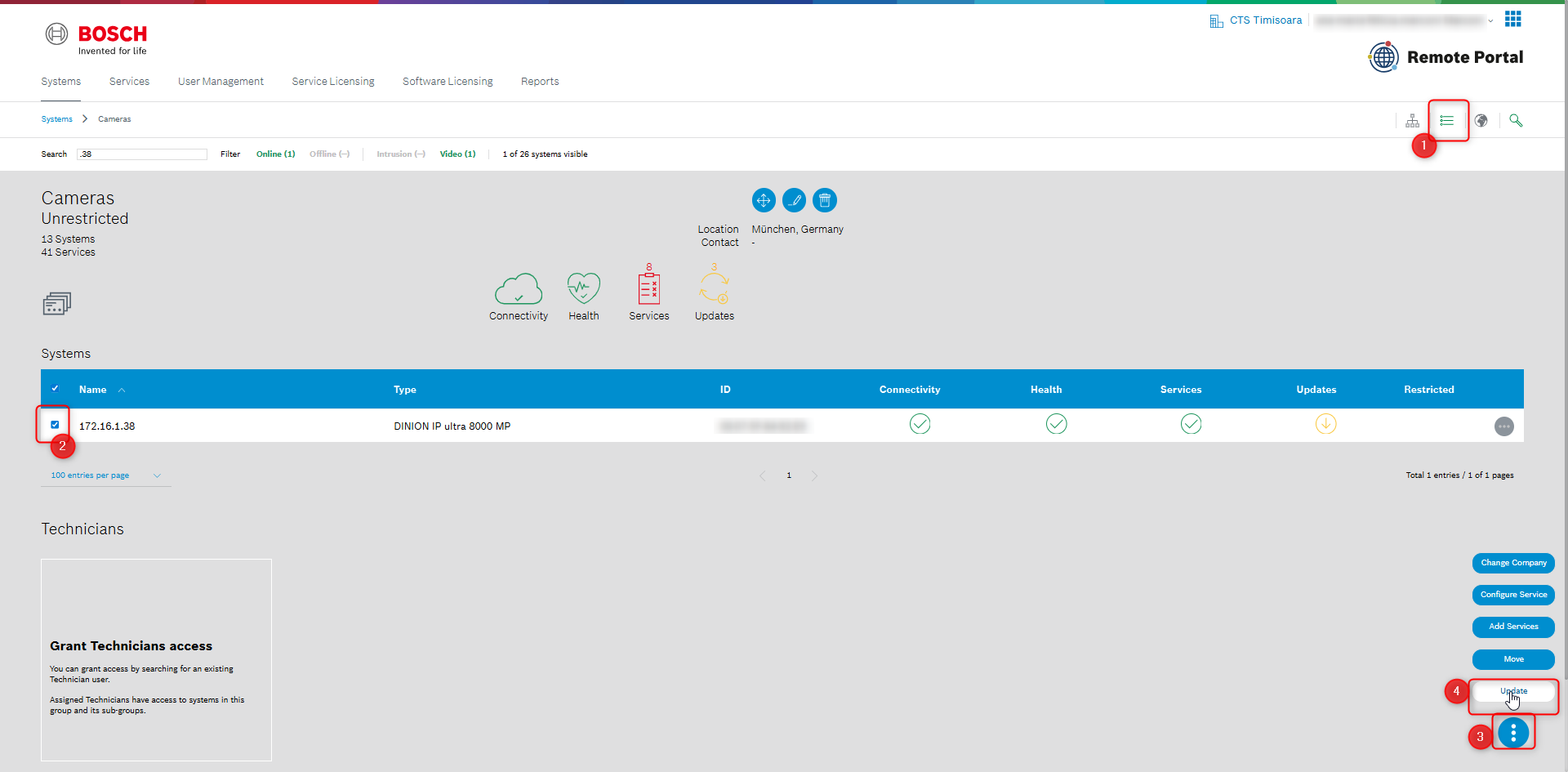
Ensure that the Systems menu is displayed as List
-
Select your camera
-
Click ok the three dots button
-
Select Update
-
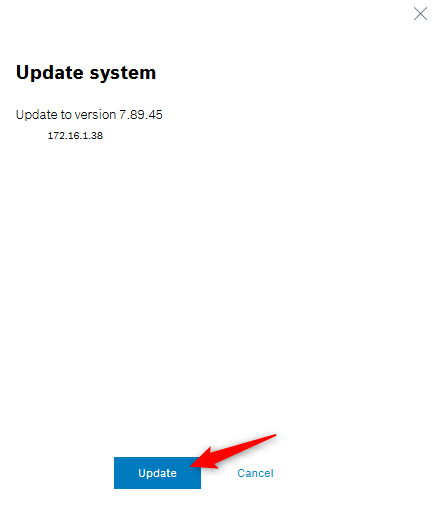
And confirm your action by clicking Update
-
And wait for the Firmware upgrade process to be completed.
