Question
What to do when DINION thermal 8100i cameras cannot be found by the system when scanned (APIPA Mitigation instruction)?
Answer
Without an active DHCP server, Configuration Manager cannot detect the camera on its APIPA when using Firmware 10.20.0019.
However, it works with Firmware 10.40, but updating requires an initial connection.
If you don’t have a DHCP server, you can alternatively use a Wi-Fi dongle.
This allows you to connect directly to the camera from your laptop or phone to set an IP address.
1. Install ProjectAssistant_2.6.0.234.msi or a version above available on Download Area.
2. Insert the dongle:
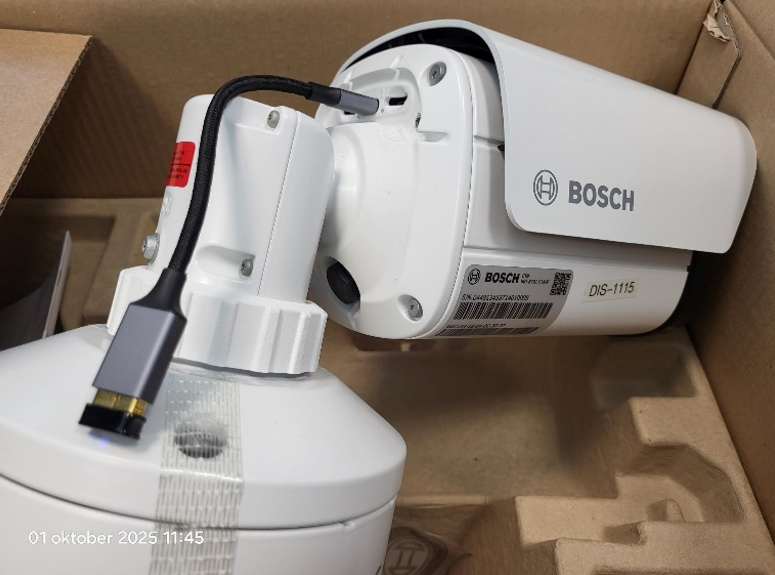
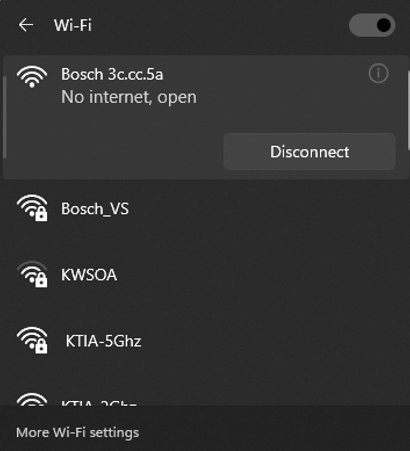
3. Search Wi-Fi access points and Connect laptop to Dongle:

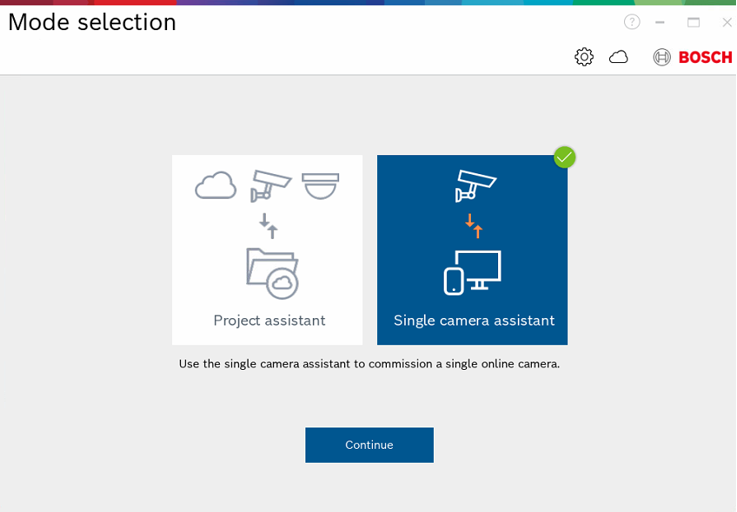
4. Open “Project Assistant” and select Single camera assistant:
5. Choose “Connect via WLAN”:
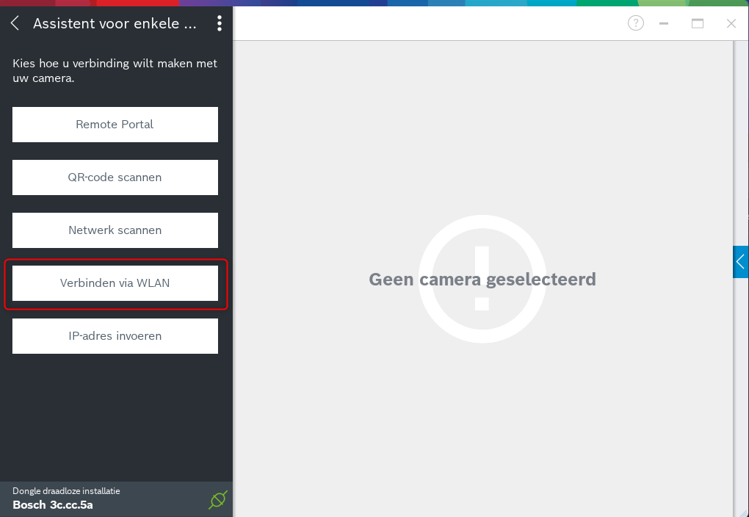
6. Choose the connected “WLAN-camera”:
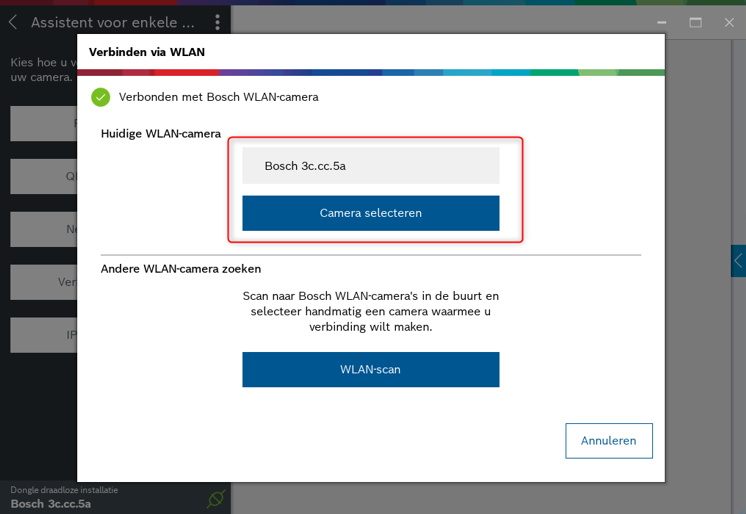
7. Choose “Basic settings”:
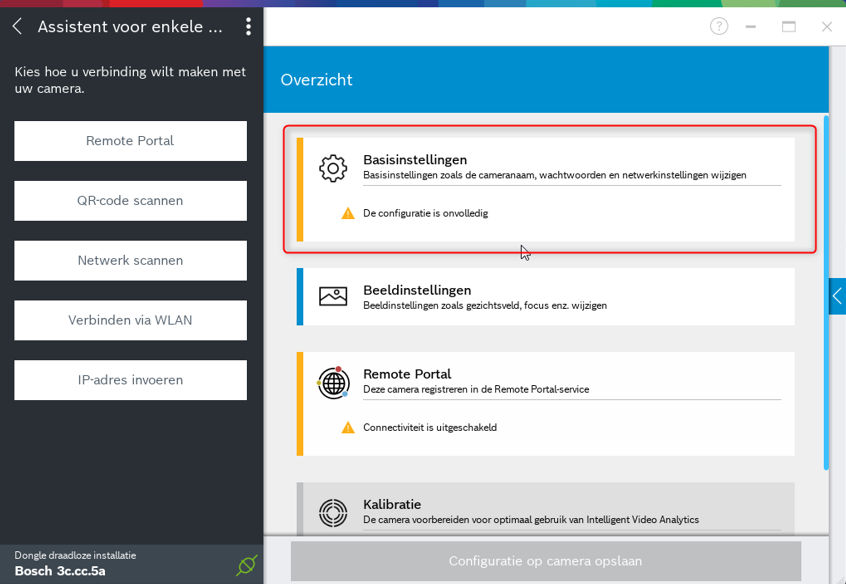
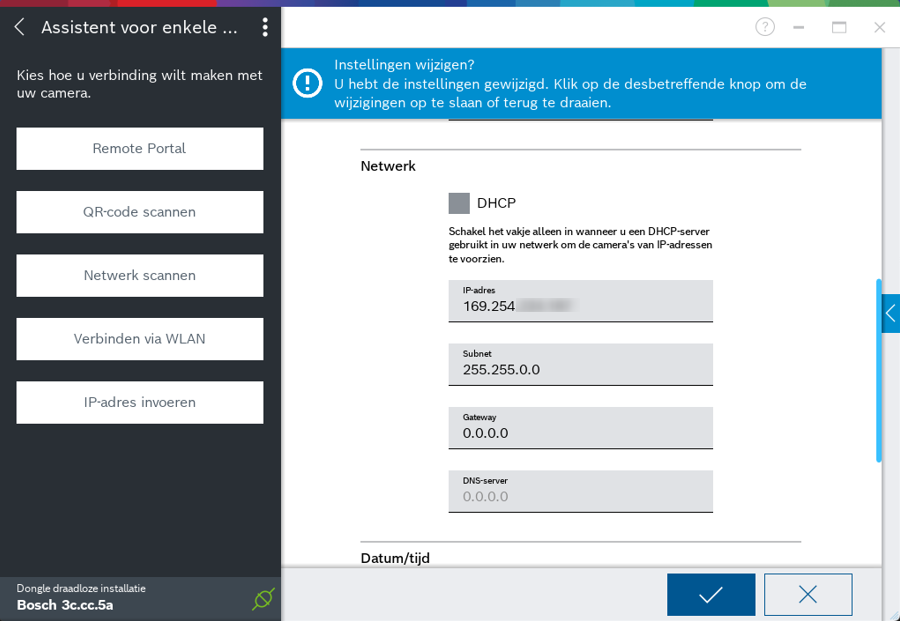
8. Fill in all fields:
-
Name
-
Passwords
-
Un-tick DHCP and set IP address
-
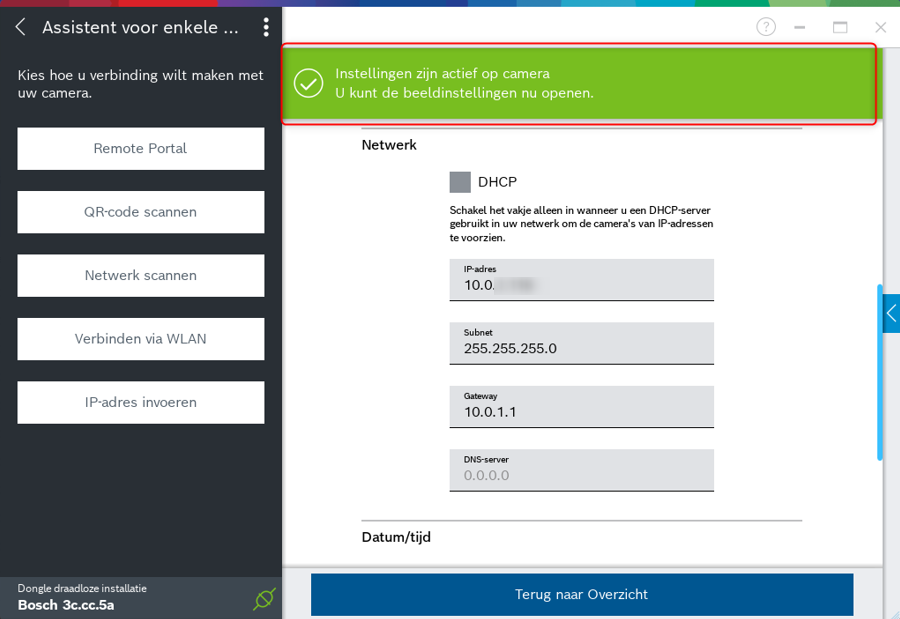
Once saved, wait until settings get applied > top will turn green
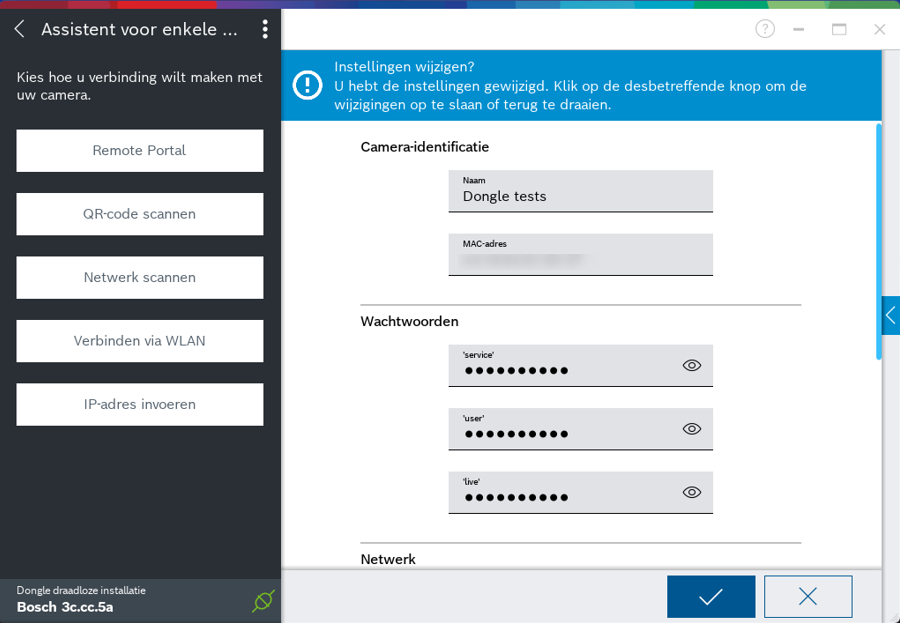
When the top part turns Green and mentions “Settings active on camera”, then the settings are successfully stored on the camera, and you can unplug the WiFi dongle.
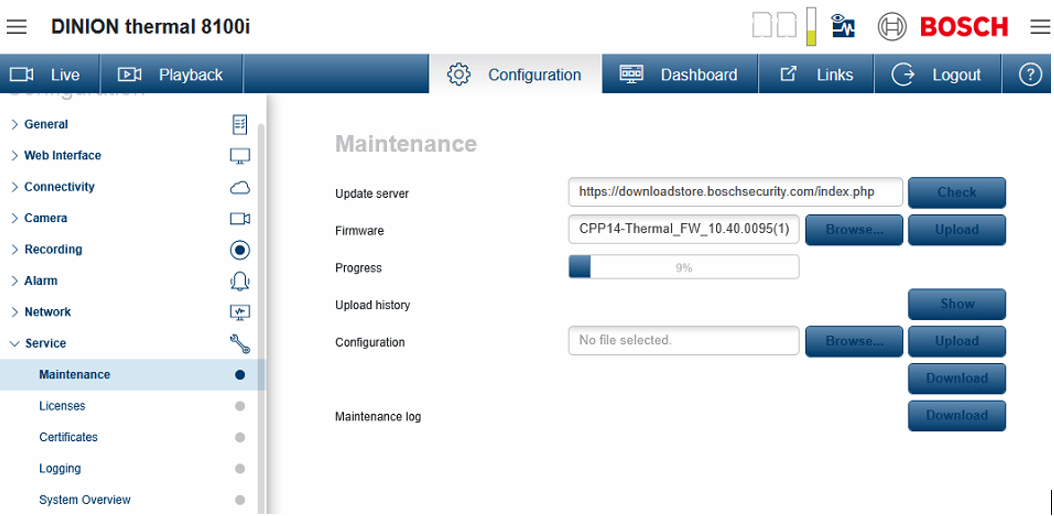
Once finished, we strongly recommend updating the camera FW and camera block.
Latest available version at 1st of October 2025 is: CPP14-Thermal_FW_10.40.0095.fw