
Intelligent person tracking is a new feature, introduced with BVMS 14.0 (released in Q2 2026).
Step-by-step guide
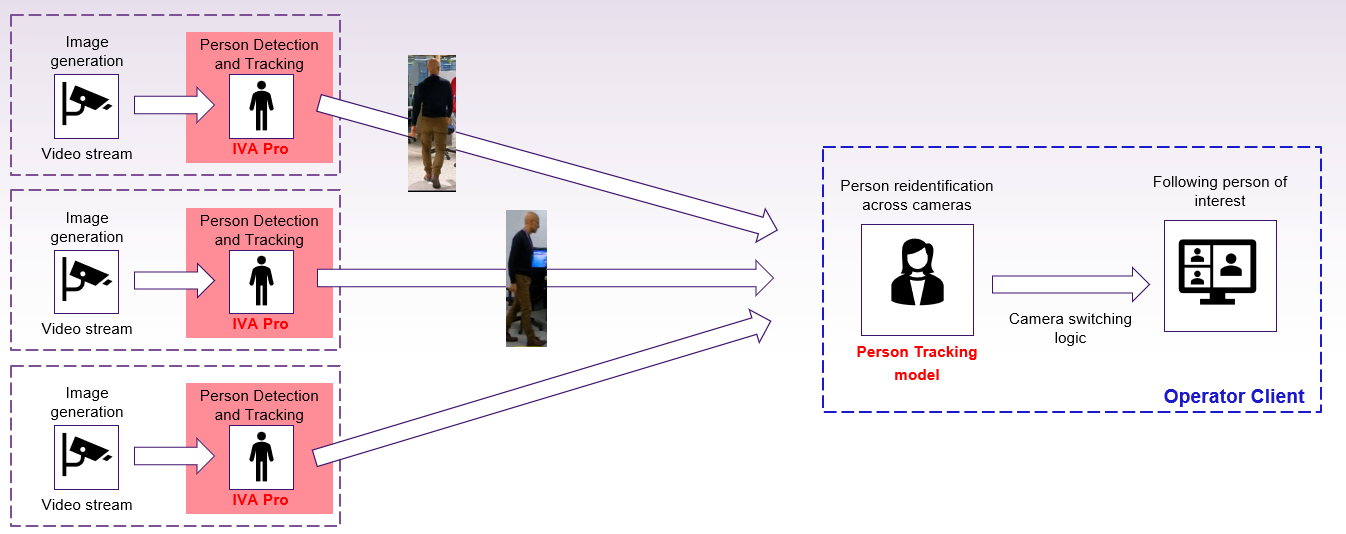
How it works?
-
IVA Pro running in the camera is detecting persons and provides information about detected persons as part of metadata
-
BVMS is using AI model within the Operator Client and compares incoming information about detected persons from cameras nearby to determine whether it's the same person or not
-
When the same person is detected (compared to the reference image), BVMS will either inform about any new detection within the same or other camera nearby or will automatically switch the camera view to the new one
Camera requirements
CPP14+ cameras running FW 9.81 or higher.
Supported IVA Pro packages:
-
IVA Pro Buildings
-
IVA Pro Perimeter
-
IVA Pro Traffic
-
IVA Pro Attributes
-
IVA Pro PPE
Hardware requirements
AI model is running on a workstation with BVMS Operator Client installed and requires proper GPU: Nvidia A-Series or T-Series
Software requirements
BVMS 14.0 Setup with AI.
Configuration steps
Below you can find instructions on necessary steps to enable and start using the feature:
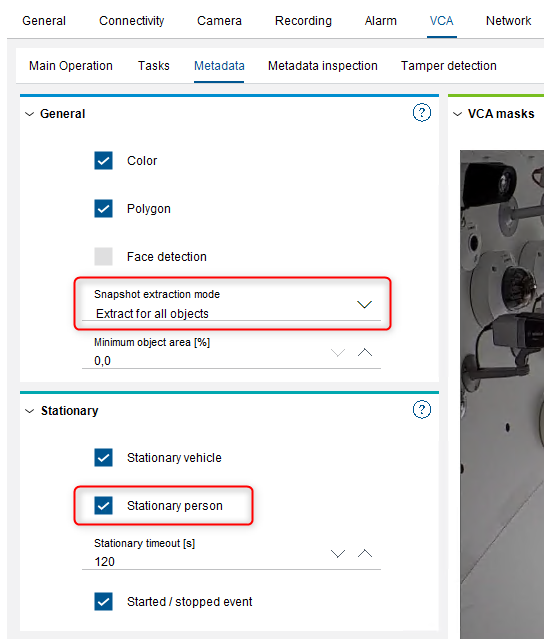
Step 1:
In the camera VCA config tab make sure, that Snapshot extraction mode is enabled to Extract for all objects. It is also recommended to enable Stationary person detection:
Step 2:
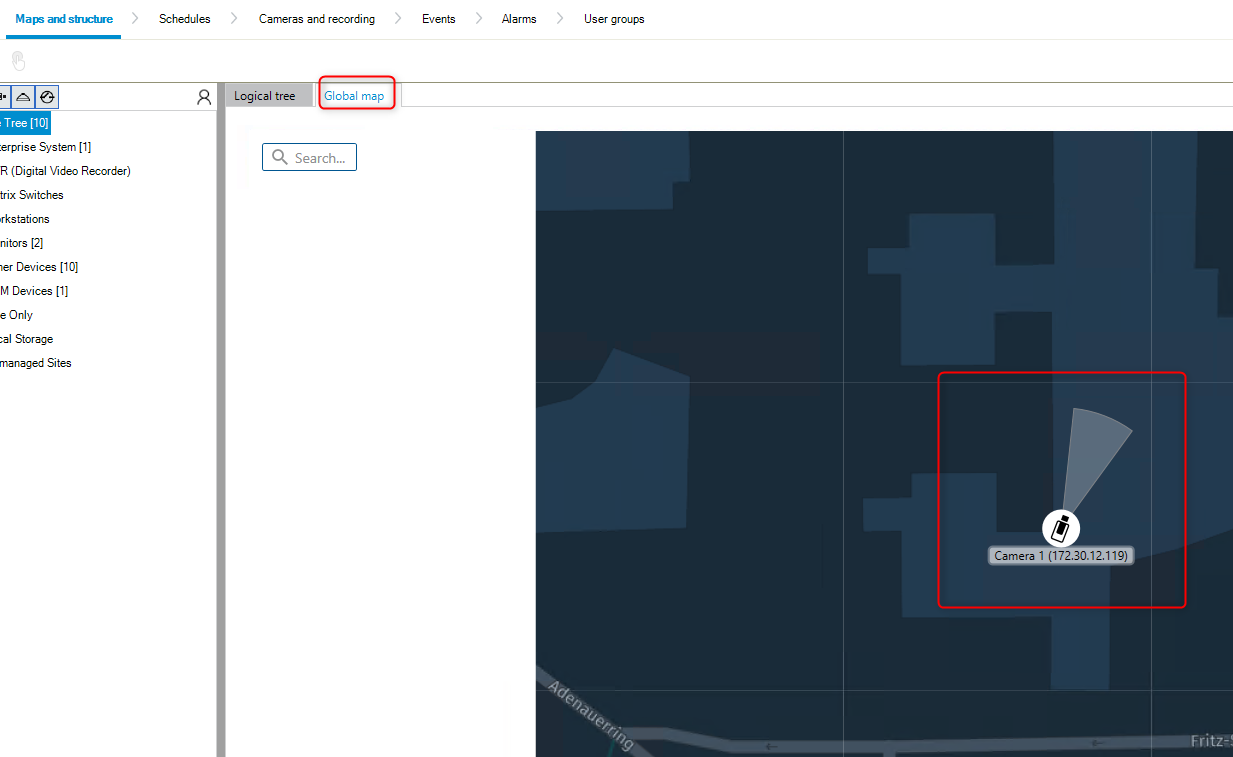
In the Global map menu make sure that all the cameras that will be used for tracking are placed on a map. It could be done either with offline layout or using online maps and position doesn't have to be accurate (unless you plan to use object tracking on a map), but BVMS needs to know approximate camera location so information is compared between surrounding cameras:
Step 3:
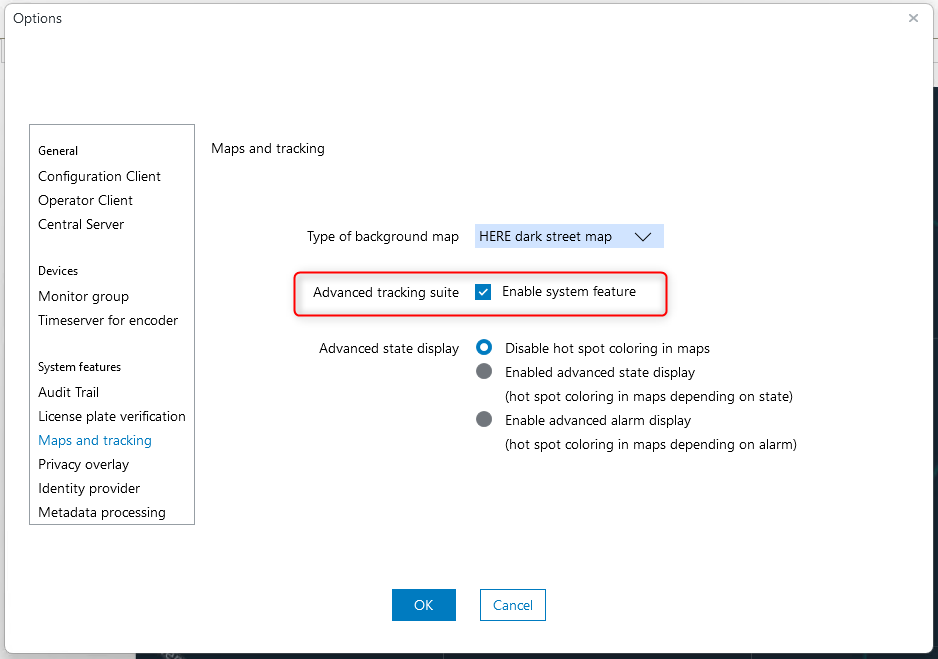
In the Settings → Option dialog, go to Maps and tracking and enable Advanced tracking suite feature:
Step 4:
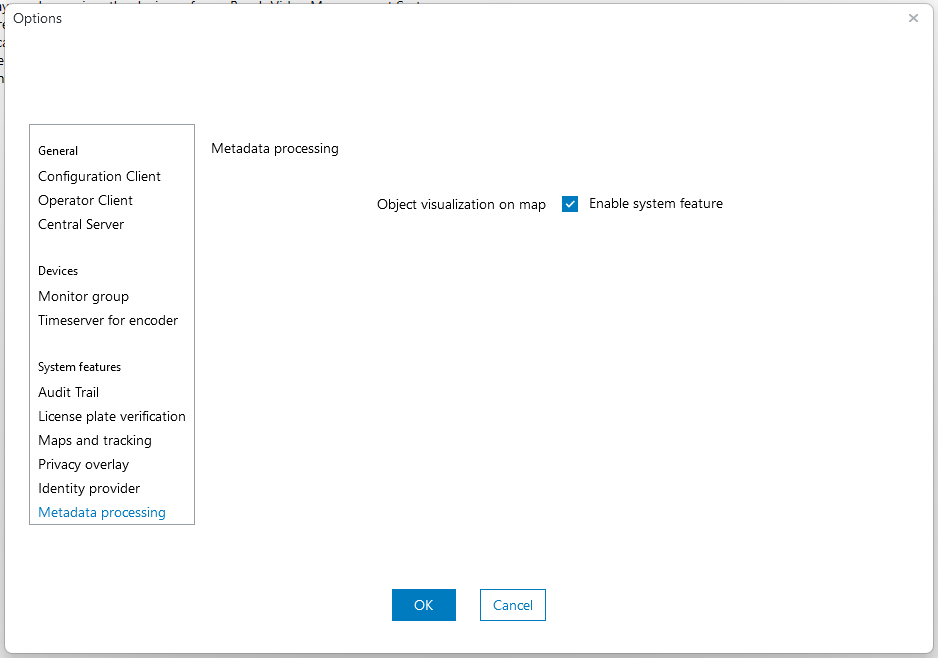
In the Settings → Option dialog, go to Metadata processing and enable Object visualization on map
Step 5:
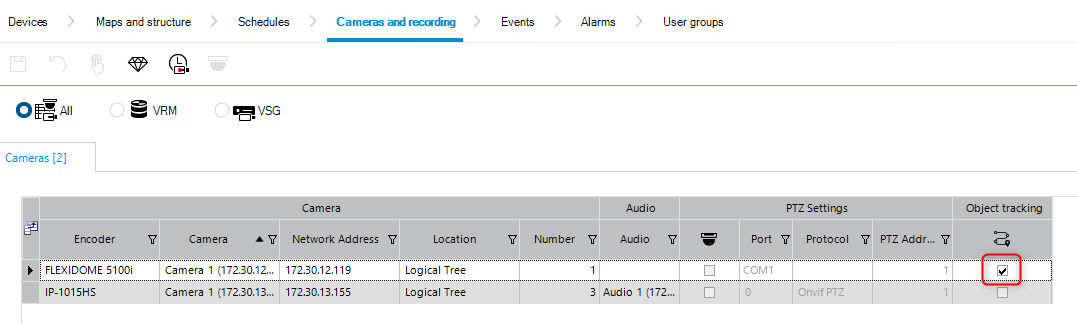
In the Cameras and recording page enable Object tracking feature for each camera which will be used for person tracking:
Step 6:
Save and activate the configuration. Done!
How to start?
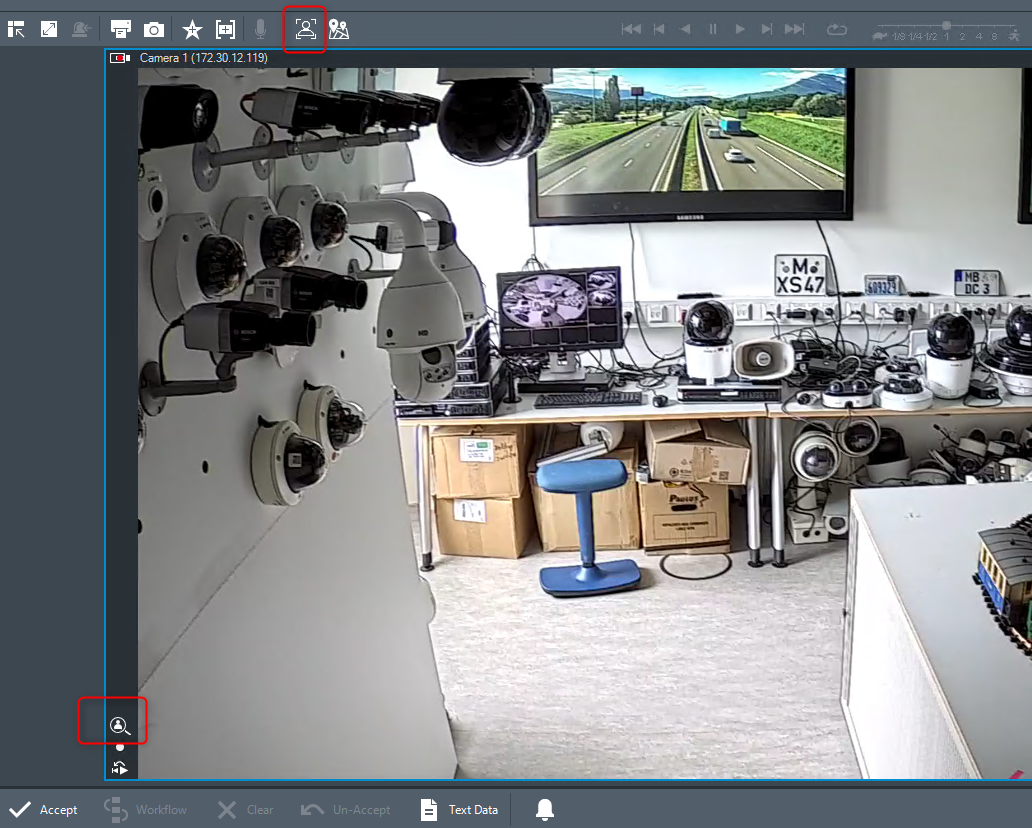
Once the configuration is done, for cameras where person tracking was configured, Intelligent person tracking should be available. Open the cameo and you should see the icon which allows to start tracking:
Note: with the first start of the feature, AI model is initialized - this process might take up to few minutes.

-
Why is Intelligent person tracking icon not visible in BVMS v14.0 Operator Client?
-
Why does the AI model not start for Intelligent Person tracking in BVMS v14.0?
-
Observed problem: Tracking does not continue for the next camera nearby, even though person should be visible there
→ Potential solution: Make sure, that cameras are properly placed on a map and map is (at least roughly) scaled - no detailed camera calibration is needed, but BVMS will only compare information from cameras not more than ~100m away -
Observed problem: AI model indicates overload when tracking is started
→ Potential solution: It might happen in case of busy scene (a lot of person images that are needed to be compared) for many cameras nearby. Consider using more powerful GPU, optimize cameras used for tracking -
Observed problem: There's a few seconds delay when person is moving and should be detected by another camera
→ Potential solution: This might be a limitation of the current FW version, as ~3 seconds are required to receive first metadata information used for tracking. This should be improved and resolved with the upcoming camera FW release.