Video Data can be protected to keep the recording (no deletion from VRM).
-
Retention times do not apply to protected video data
-
Video Data will never be deleted automatically by VRM
-
Manual interaction is required to unprotect Video data, otherwise system can run out of storage. Cameras may stop recording due to not enough free blocks available.
Note
Too many protected Blocks are reducing the total system capacity.
Follow the step-by-step guide below to find protected Video Data and see how you can unprotect it.
Step-by-step guide
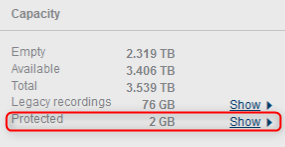
1. In VRM monitor (see: How to access VRM monitor from BVMS Configuration Client (VRM monitor explained)?) check the information on video that has been protected: GB ? Which camera?
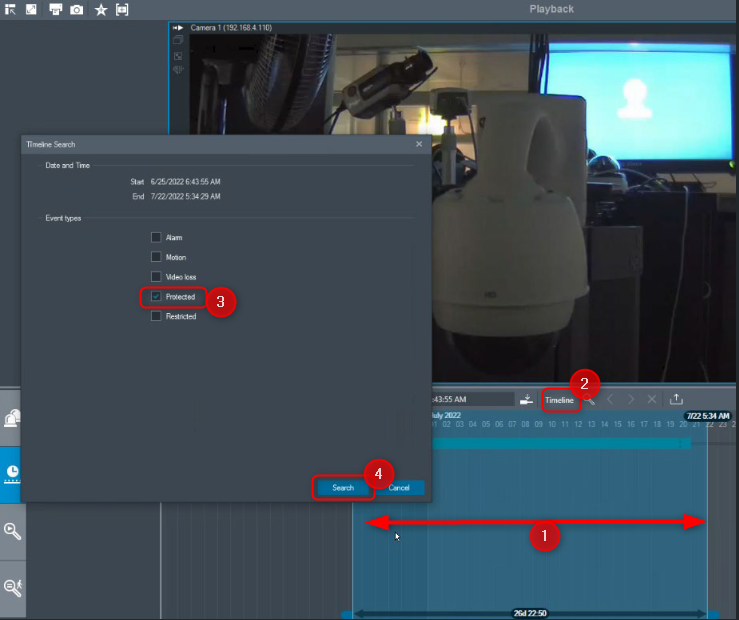
2. Open BVMS Operator Client > playback > select the camera: Zoom out the timeline to see all recording of the camera starting with first day (use mouse wheel to zoom)
3. Select the complete timeline (blue boxes on the bottom of the hairline) > Press the button “Timeline” (right to date/time field) > Select “Protected” and press search.
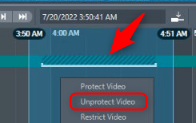
4. The protected time ranges will be shown. To unprotect it: mark timeline & right click: “Unprotect Video”
There are two ways of protecting Video Data:
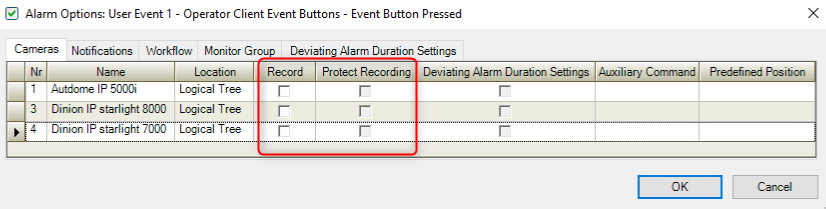
a) Automatically as result of Alarm Recording (configuration in BVMS Configuration Client)
Note: Camera FW >6.x support this.
-
Specially, this option has to be enabled carefully as too many protected blocks can fill up the storage!
Alarms > Cameras > Activate recording > Protect recording

b) Manually by operator in BVMS Operator Client, e.g. after an incident happened
-
To protect Video in Operator Client Replay/ Playback area: mark timeline & right click > select “Protect Video”
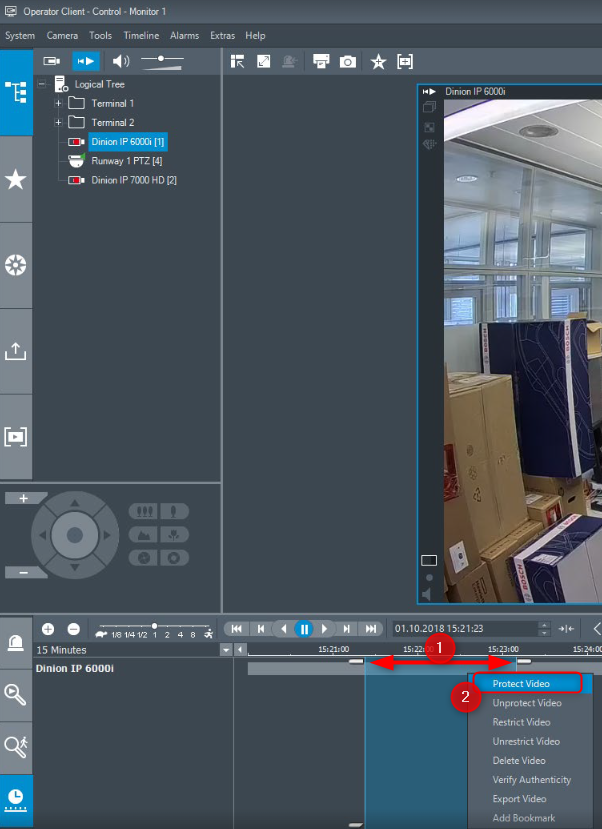
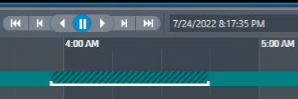
In the timeline, protected video is indicated with dark grey diagonal stripes: