
📚Overview:
Question
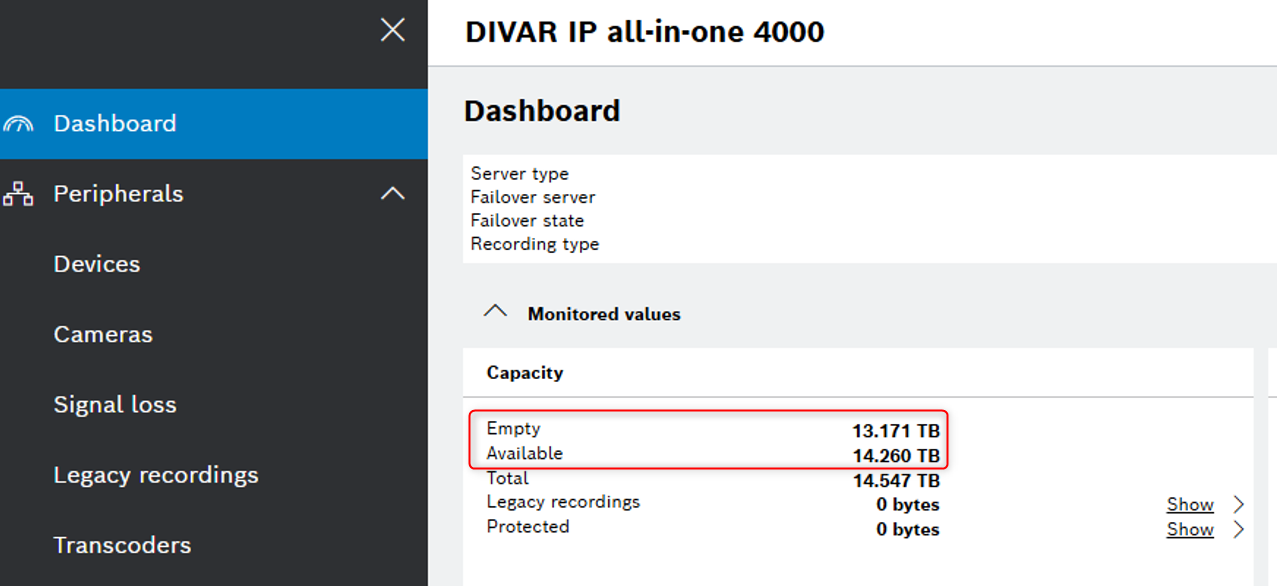
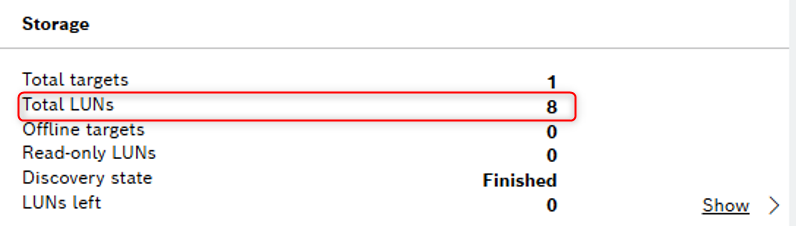
What is the difference between Empty and Available capacity of DIVAR IP and why do I have only 8 LUNs?
Answer
Empty capacity
Empty capacity is the capacity of all blocks on the iSCSI targets that do not currently contain any recording data.
This includes:
-
Newly initialized or formatted storage blocks
-
Blocks where recordings were deleted (manually or via retention expiration)
-
Blocks that are currently prepared for reuse by VRM
Empty represents storage blocks that do not currently contain recording data
Available capacity
Available capacity is the capacity of all iSCSI targets that can currently be allocated by VRM for recording.
This includes only storage that:
-
Is not reserved for existing recording assignments
-
Is not protected by minimum retention or manual protection
-
Is currently eligible for VRM allocation to cameras or recording devices
Available represents storage that VRM can still assign to recording devices based on current configuration and retention rules.
-
Total: Overall VRM storage capacity of all iSCSI targets.
-
Legacy recordings: Legacy recordings will be deleted once the minimum retention time is met, also you can delete them in the VRM debug page
-
Protected: Capacity of the manually protected blocks.
Why can Empty and Available show different values?
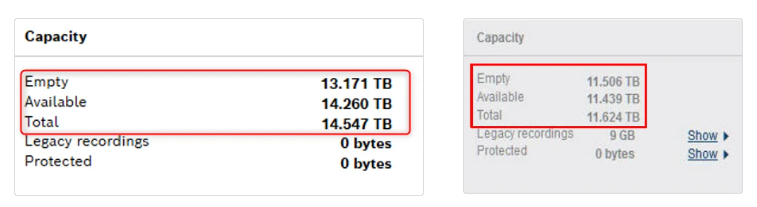
Empty and Available capacity values are calculated using different VRM logic:
-
Empty capacity reflects the actual presence or absence of recording data on storage blocks
-
Available capacity reflects whether VRM is allowed to allocate those blocks for new recordings
Because of this difference, values may not match.
Typical reasons include:
-
Span assignment to cameras or recording devices
-
Retention time and protection policies
-
VRM reservation and allocation logic
-
Pre-allocated but not yet used storage spans
As a result, a block can be Empty but not Available if it is reserved or assigned, even if it currently contains no recordings.
Normally: Empty will be bigger as it is the space on the target that does not contain recording, this includes any spans that are assigned to the camera, available does not include any spans that are assigned to the camera. Those are considered already in use and not available. This will help in a scenario where recording settings were done incorrect and VRM assigned more spans than the camera actually needs. If all the spans are assigned to a camera, there are no available spans to be assigned to any new or additional cameras meaning you might not be recording.
A key scenario:
-
If storage spans are assigned to cameras, they are considered reserved
-
Reserved spans are excluded from Available capacity
-
Even if they currently contain no recordings, they are not free for allocation to other devices
This mechanism ensures consistent recording allocation and prevents over-assignment of storage resources.
Why do I have only 8 LUNs?
This is expected system behavior for a Total of 14.577 TB.
The number of LUNs depends on the total storage capacity and system design. The recommended maximum size per LUN is approximately 2 TB, which results in about 1.82 TB usable capacity per LUN after formatting and overhead.
Therefore, the system automatically creates the appropriate number of LUNs based on the total storage capacity to ensure optimal performance and compatibility.
For detailed calculation steps, please refer to this procedure.
VRM Monitor Overview
All versions of Bosch Video Recording Manager (VRM) are equipped with a Monitor Page. For the field technician the VRM Monitor plays a critical role in installation monitoring, troubleshooting, and information gathering.
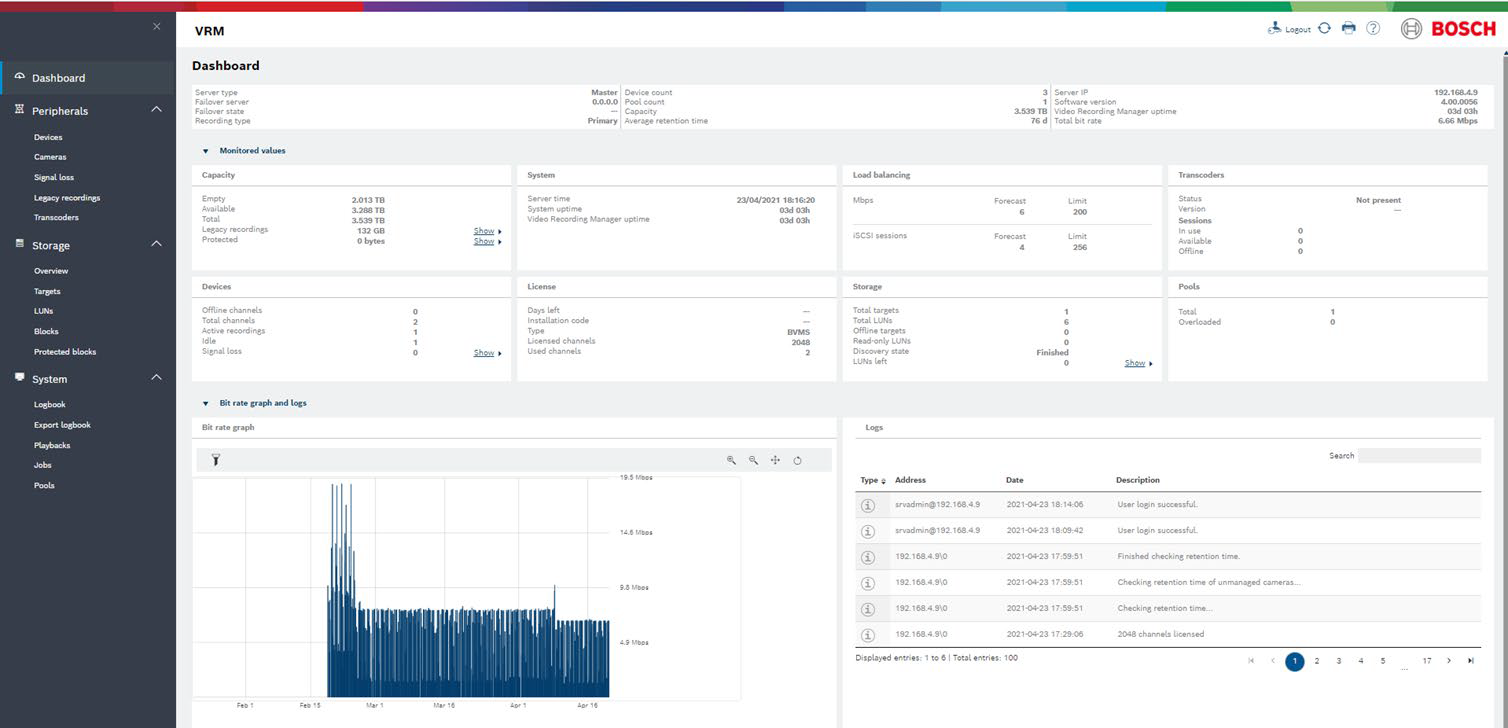
Good to know about VRM Monitor Overview:
-
Is a web base GUI interface installed automatically with VRM Server
-
Monitor the status of VRM system from any PC on the network
-
Provides information on the VRM system and limited options for replaying recordings
-
Cannot configure the VRM system with VRM Monitor.
-
New VRM Monitor layout since VRM 4.x (released together with BVMS 11.0)
How to access?
-
Using a web browser, enter the IP address (or URL) of the VRM Server. Example: <http://<VRM_Server_IP_Address>>
-
Start the VRM Monitor out of the Configuration Client
Default ports
-
HTTPS port 443
-
HTTP port 80
Default credentials
-
Username : srvadmin
-
Password : <blank> (There is no default password, but a password can be set up)

For a detailed explanation about VRM Monitor page, please refer to this article.