
This procedure could be useful if you encounter issues with the Asus Inband Server service that is not running and cannot be started.
Additionally, the following error message may appear on the web interface:
"Hmmm... can't reach this page
127.0.0.1 refused to connect.
Try:
-
Search the web for 127 001
+ Checking the connection
+ Checking the proxy and the firewall
ERR_CONNECTION_REFUSED”
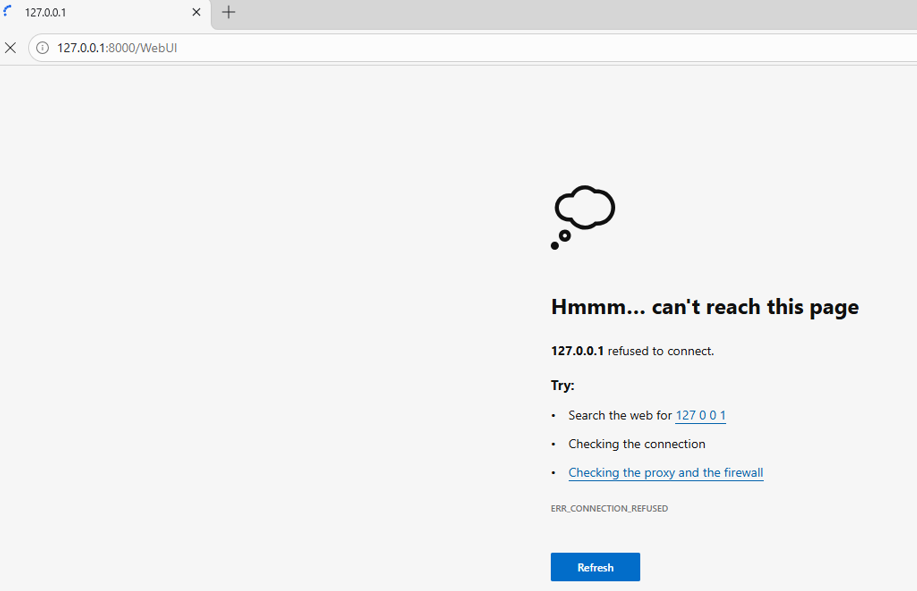
This behavior could indicate that the BMC is not connected. Therefore, please verify whether the BMC is accessible. If it is not accessible, please establish the connection first.
Step-by-step guide
If the BMC is accessible but the issue still persists, we recommend the following steps for your reference:
Restarting the ASUS Inband Tool could be performed via the Windows application.
-
Press Windows + R > Type: services.msc > Press Enter
-
Look for the Asus Inband Tool service
-
Right-click the service > Select: Restart
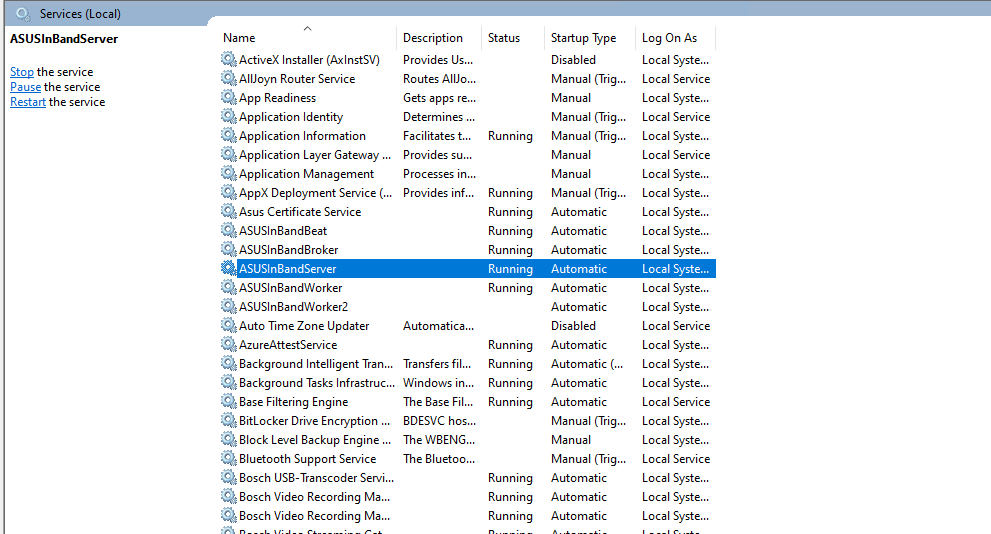
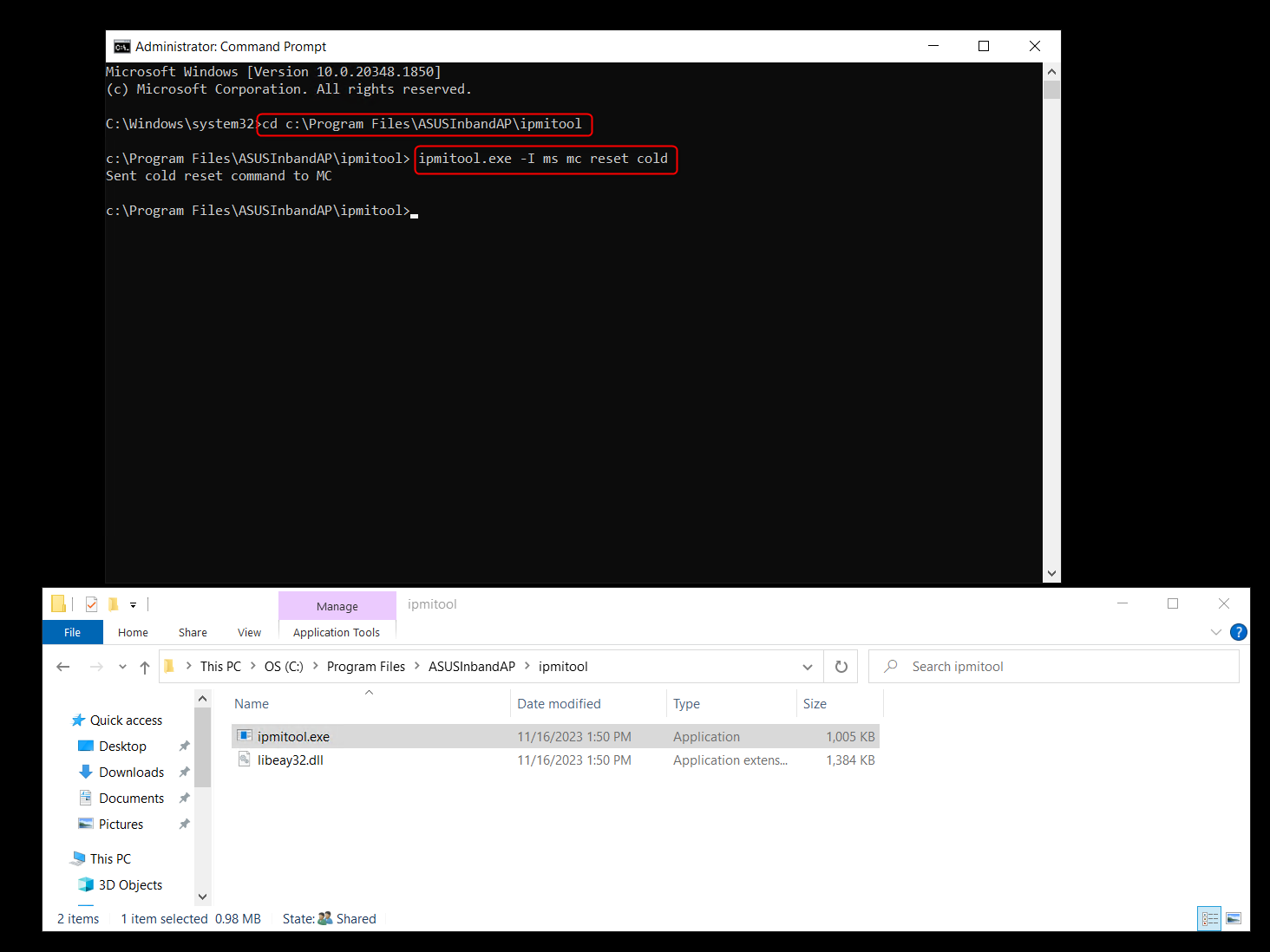
Resetting the BMC ipmitool.exe could be performed via Command Prompt. The path is: “C:\Program Files\ASUSInbandAP\ipmitool”
-
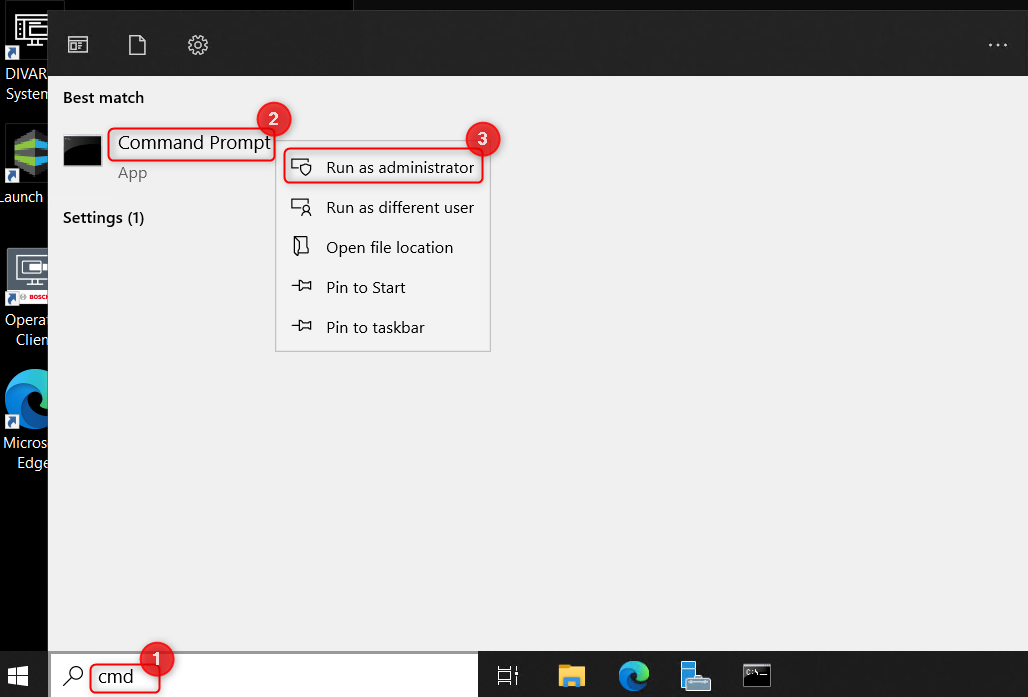
Run Command Prompt as Administrator
-
Change the directory by typing cd c:\Program Files\ASUSInbandAP\ipmitool > Enter
-
Type in the command: ipmitool.exe -I ms mc reset cold > Enter

-
What to do if the ASUS Inband Tool does not start when trying to access it?
-
For configuring the BMC settings, follow the steps from Operation Manual (page 21).
-
How to find the DIP serial number and the IPMI (BMC) information of DIVAR IP all-in-one?
-
How to collect BMC logs (RAID & IPMI Event Logs, System, Audit & Video Logs) of DIP AIO 7000 gen4?